Virus Scan
Virus Scan scans your sites' files with ClamAV and lets you quarantine, clean or ignore findings. No file is deleted silently.
What Virus Scan does
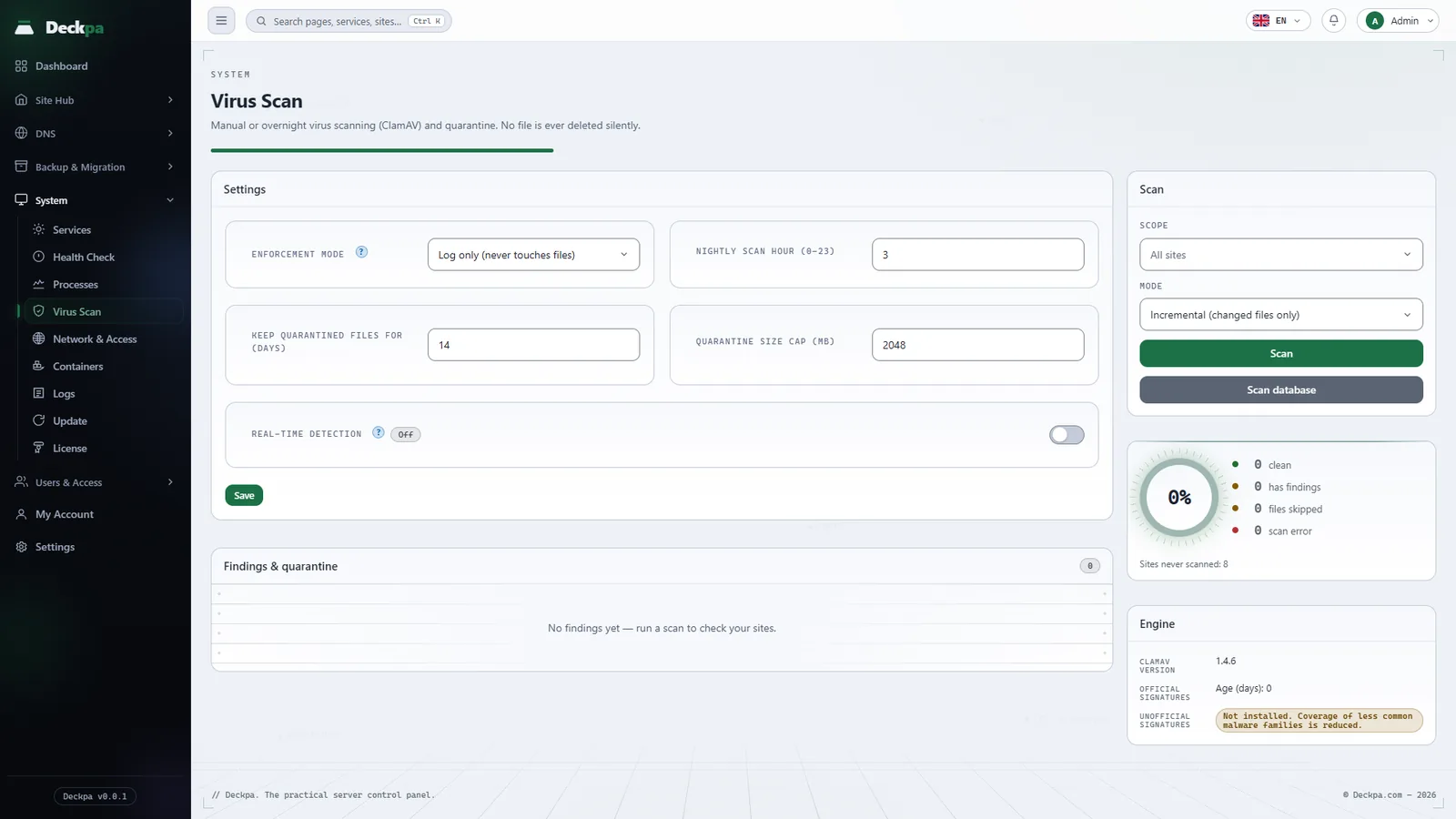
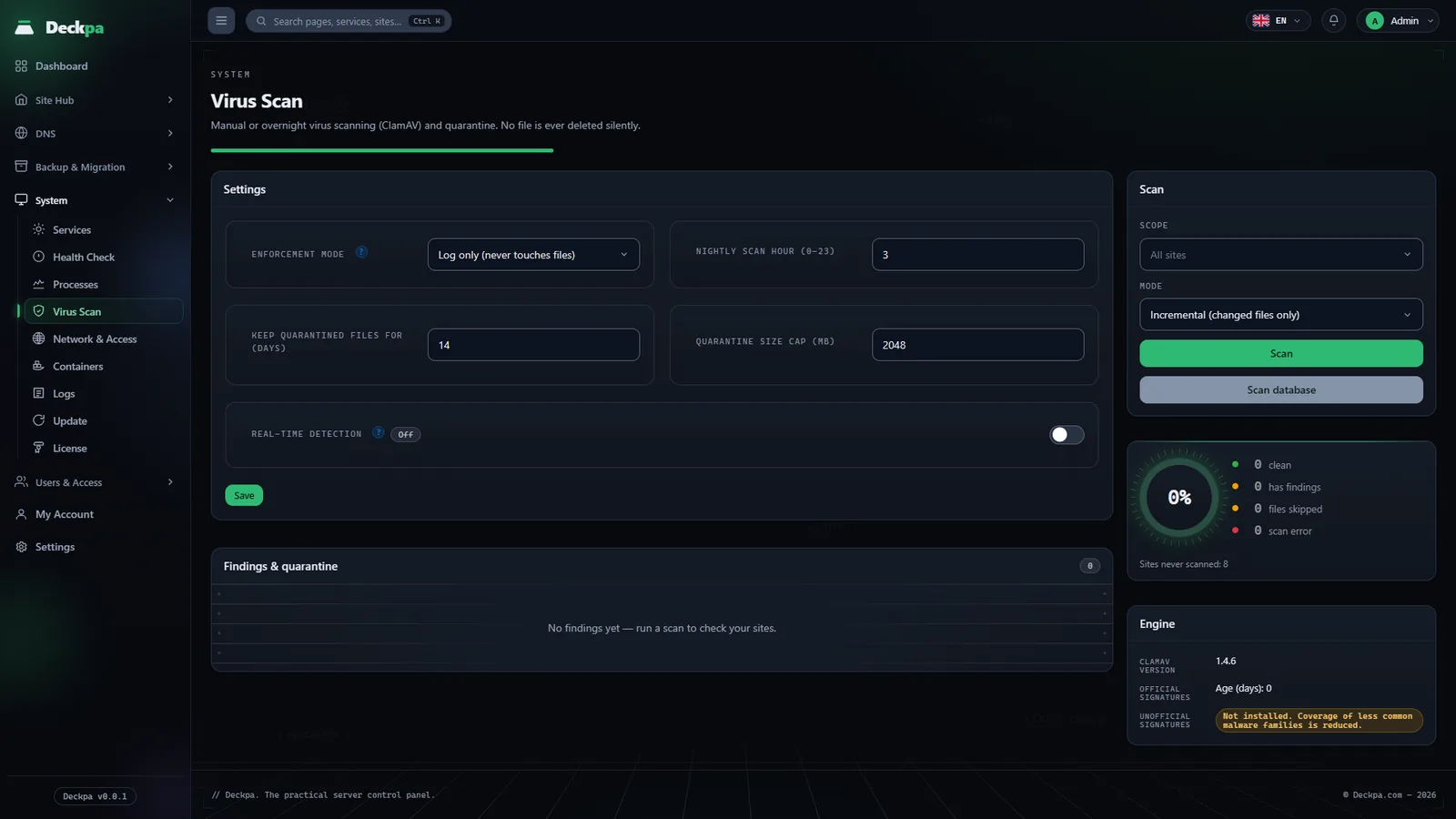
Virus Scan scans the files of your sites with ClamAV and shows the malware it finds to the administrator. The goal is to notice an infected site before it harms the other sites on the server, and to neutralize it safely. No file is deleted silently: every action is taken with your confirmation and leaves a visible state in the list. The screen is under System → Virus Scan and is available to administrators only.
Site owners do not see this screen. If there is an unhandled finding on their own site, they see the "Virus scan finding" alert on the Alerts page.
Installing the engine and watching its status
ClamAV is not installed together with Deckpa; it is optional. If it is not installed, the page shows a ClamAV is not installed badge, and the Install from Services link takes you to the System → Services page.
The Engine card on the right gives three pieces of information:
- ClamAV version — the installed version. If the version is approaching the end of its support period, a warning badge appears next to it.
- Official signatures — how many days ago the official signature database was updated. If the signatures look out of date, the card says the signature update service (freshclam) may not be running; if there is a last update error, it is shown too.
- Unofficial signatures — the official signature set is weak against less common PHP malware families. If the unofficial signature set is not installed, the card shows a warning badge and says coverage is reduced. In that case a clean result does not mean the less common families were actually checked.
Engine freshness is also measured in Health Check (ClamAV Engine Version and Unofficial Signature Set Coverage).
Starting a scan
You start a scan yourself from the Scan card on the right:
- Scope — All sites or a single site.
- Mode — Incremental (changed files only) looks at files changed since the last scan and is fast; Full (every file) scans every file again.
- Scan — queues the scan. The button locks while the scan runs, the status is followed as "Scanning…", and the page refreshes when it finishes. If it takes longer than expected, the page tells you to check again later.
The Scan database button looks for malicious patterns in the database content of a site. For this you need to pick a single site as the scope; database scanning is not available for all sites. Every match found is listed for manual review; nothing in the database is changed automatically.
The percentage in the middle of the ring is the share of sites that came out clean out of all sites. The counters next to it divide the sites into four groups: clean, has findings, files skipped and scan error. A site that has skipped files or a scan error is not counted as clean. Sites that were never scanned are noted under the ring as "Sites never scanned: N".
Findings and quarantine
The Findings & quarantine list shows, for each finding, the site, the file path, the class, the signature name, the detection time and the status. There are three classes, and each class has different actions:
- Malicious file — the whole file is malicious. A quarantined file is moved outside the site's home directory to
/home/.deckpa-quarantine, which only root can access. On a quarantined finding, Release from quarantine takes the file out of quarantine; Delete permanently asks for confirmation and cannot be undone. - Code injection — malicious code has been added to one of the site's own files (for example at the start or end of an application's core file). Because the file is not malicious by itself, it is never quarantined or deleted automatically in either mode. Actions: Remove injected code, Restore from backup (goes to the site's backup page) and Ignore.
- Database (DB) — a finding from a database scan. The only action is Ignore; you are expected to review the content manually.
Remove injected code first shows you the code block that will be removed from the file and asks for confirmation. If you confirm, the original file is backed up to /home/.deckpa-security-backup, which belongs to root, then the block is removed from the file and the file is scanned again. The result appears with a cleaned badge; if the new scan cannot confirm that the file is clean, the badge says so and you need to check the file by hand. The panel refuses to clean in these cases: when there is more than one PHP block at the start or end of the file, when the block does not match a known malicious pattern, when no safe, isolated block can be found, or when the file is too large to analyze. In those cases, review the file manually or restore it from a backup.
The status column shows what happened to the finding: pending, quarantined, released, deleted, ignored or cleaned.
Settings
The Settings card at the top of the page applies to the whole server:
- Enforcement mode — Log only (never touches files) is the default: findings are recorded and no file is touched. If you choose Enforce (automatically quarantine malicious file findings), malicious files are quarantined automatically when a scan finishes. Code injection findings get no automatic action in either mode. On a new server, it is a good idea to scan in log-only mode first and review the findings, then switch to enforce mode.
- Keep quarantined files for (days) — default 14. Quarantined files that pass this period are deleted.
- Quarantine size cap (MB) — default 2048.
- Real-time detection — an optional switch; when it is on, files are scanned right after they are written. For this, clamd must be installed and running, the server must have enough free RAM, and the Deckpa system service must be restarted for the setting to take effect; if something required is missing, the reason is written under the switch. The badge shows active, configured but not running or Off. According to the panel's own note, real-time detection reduces risk but does not completely prevent infection; it catches a file right after it is written, not the write itself.
Press the Save button to save the settings.