Backup and restore
A backup packs a site's files and all of its databases into one archive, and can also copy it to a cloud destination.
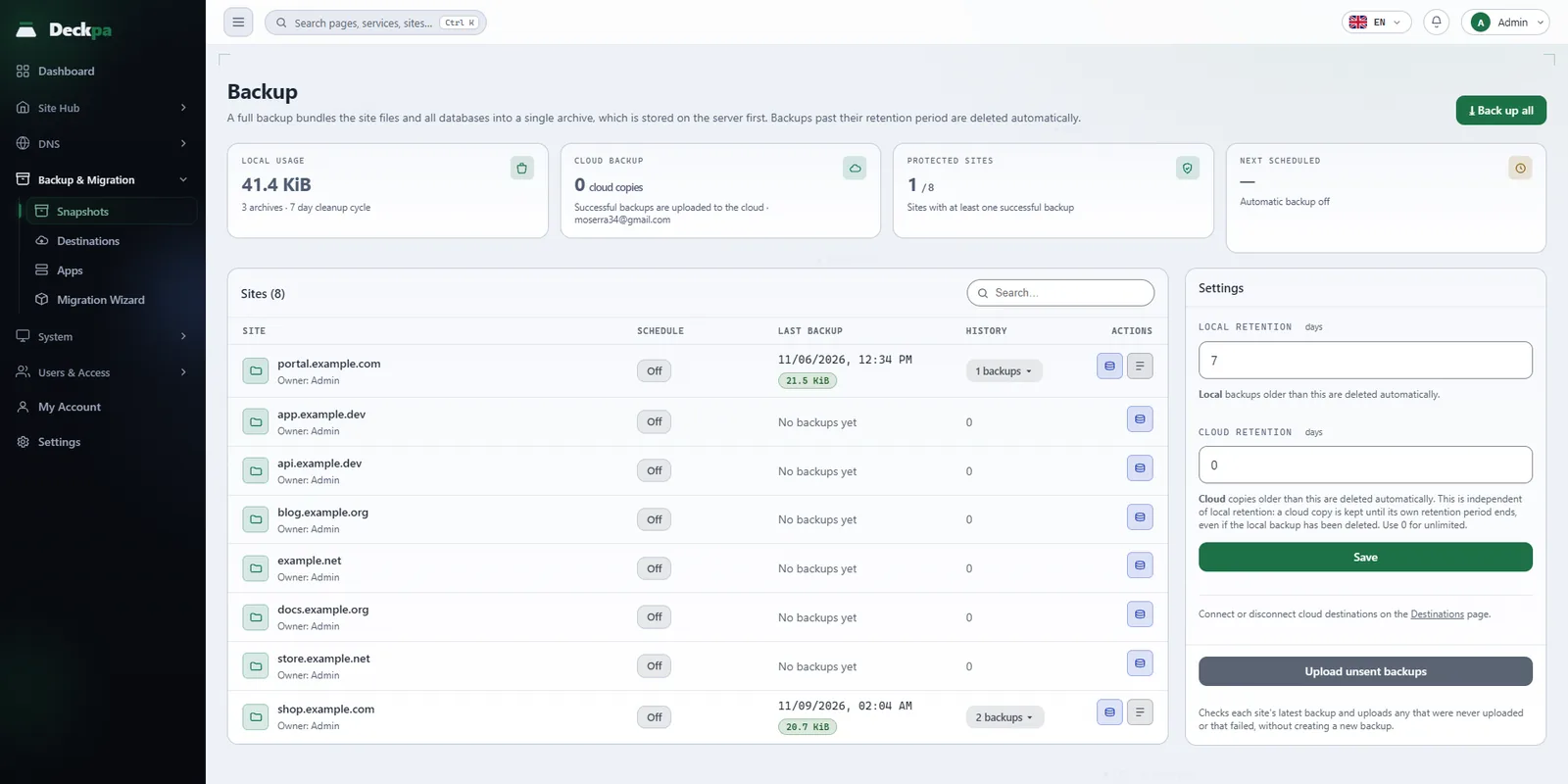
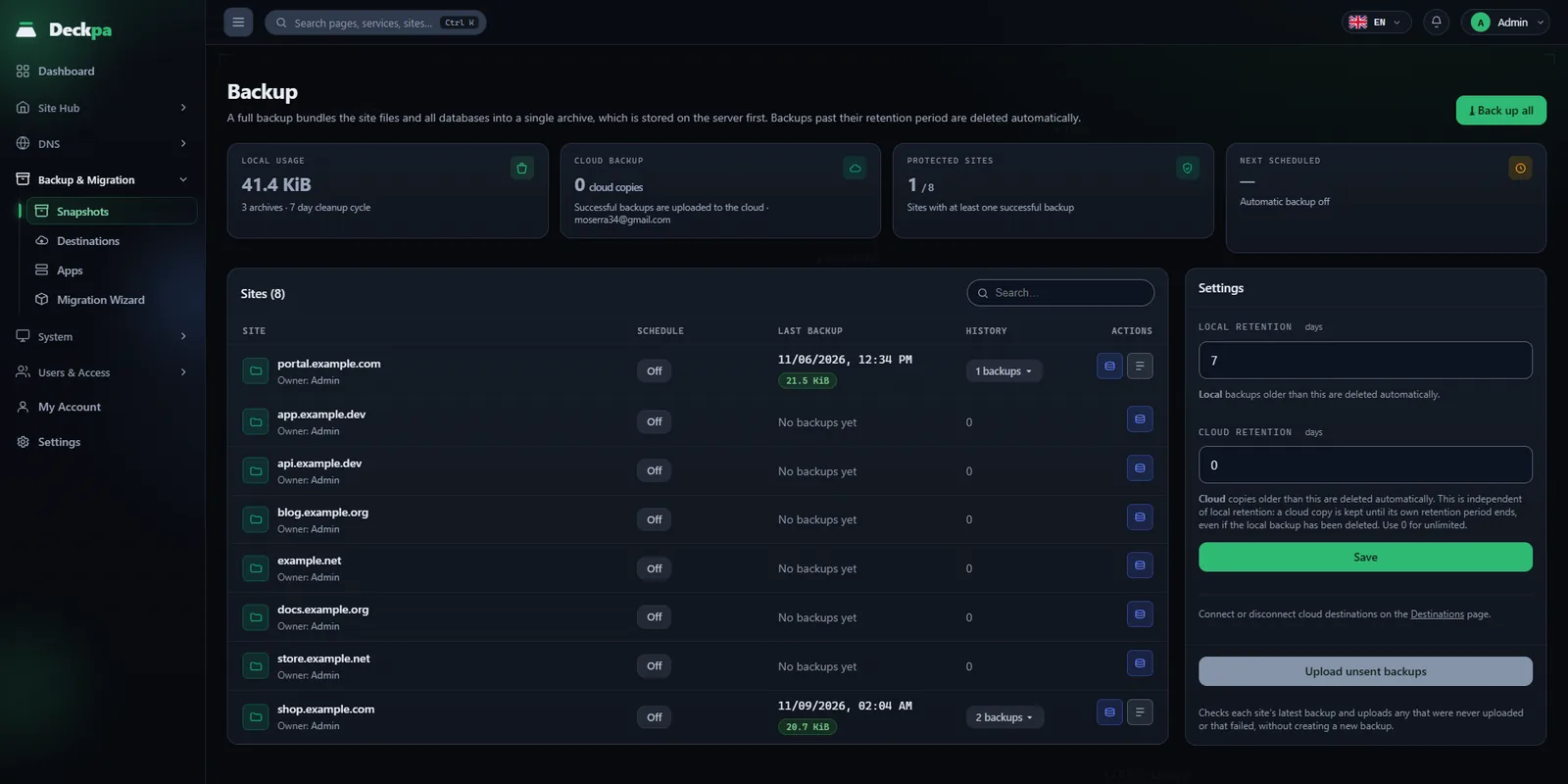
What a backup contains
Backups work per site. By default, a backup packs the site's files and all of the databases linked to it into one archive, so you do not need to take a separate database dump. In the schedule rule you can also choose files only or databases only.
Backups are stored on the server first, and if Google Drive is connected, a copy is sent there too. The panel marks a backup it cannot find on disk as Not on disk, which means the archive was deleted or the backup volume is not mounted. Restoring is turned off in that case.
Connecting a cloud destination
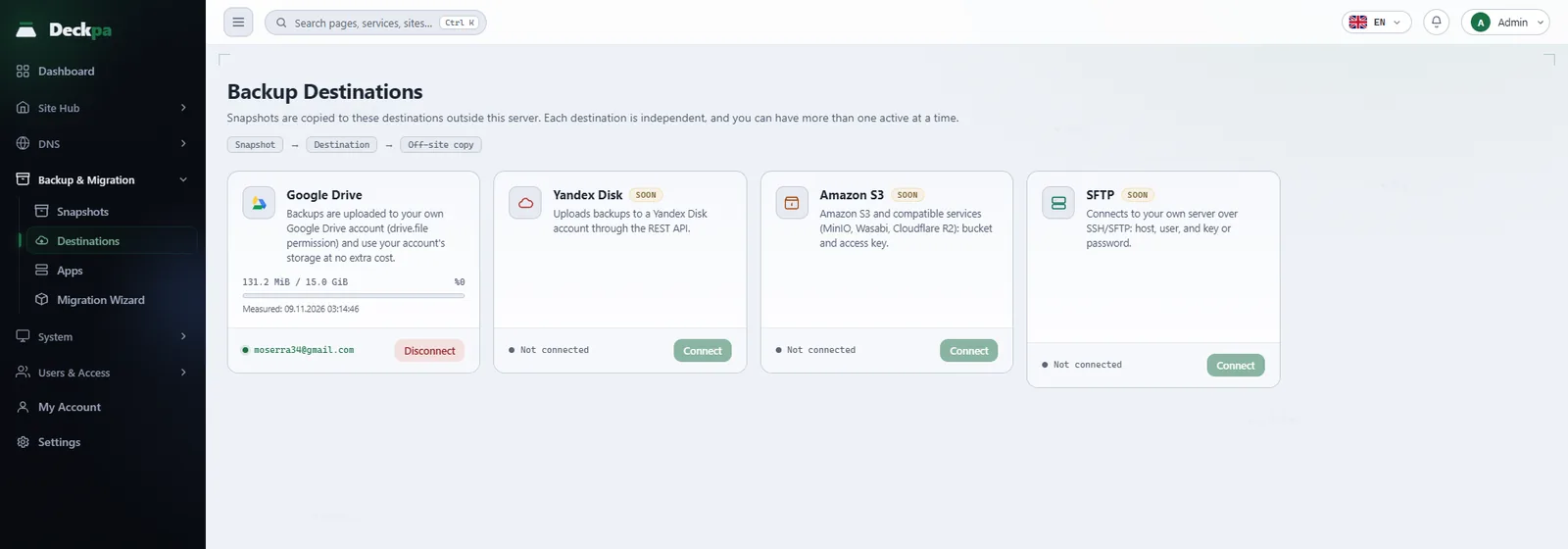
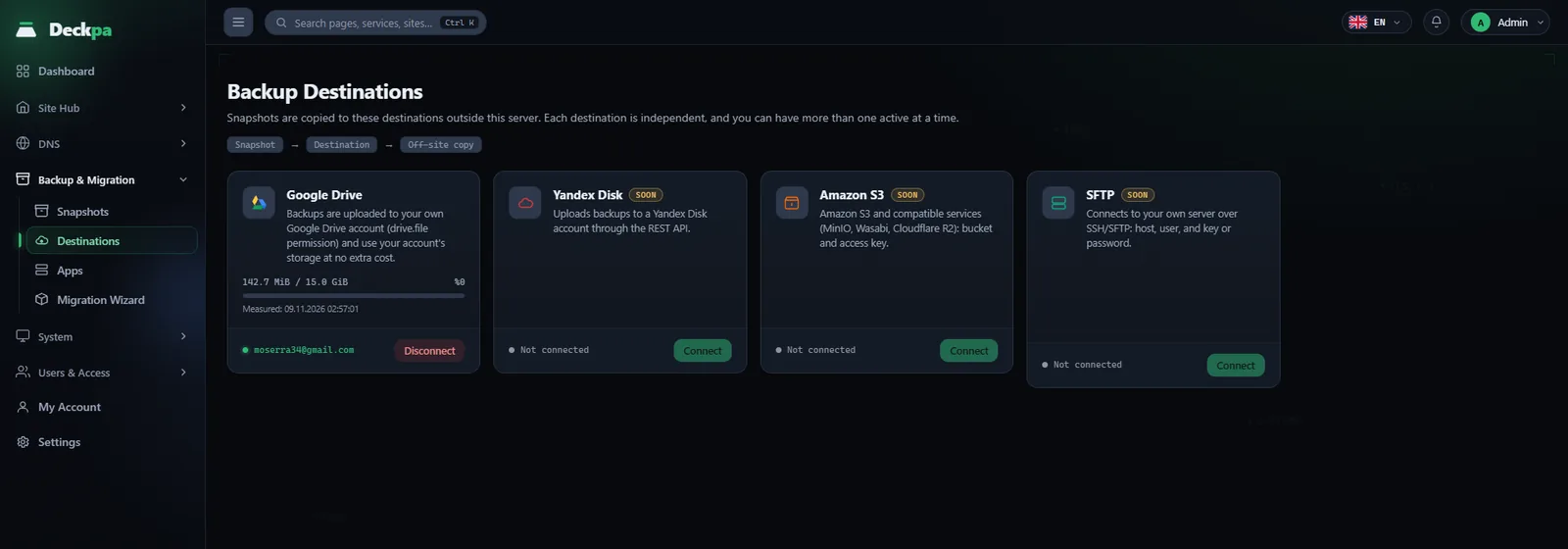
You can connect your Google Drive account on the Backup & Migration → Destinations page. Yandex Disk, Amazon S3 and SFTP destinations appear in the panel marked Soon; they cannot be used yet. When a destination is connected, a copy of every backup is uploaded there, so you still have a copy to restore from even if the server is lost completely.
The Upload unsent backups button checks each site's latest backup and sends any that were never uploaded, or whose upload failed, without taking a new backup. This is how you catch up on uploads that were skipped because of a lost connection.
Schedule and retention
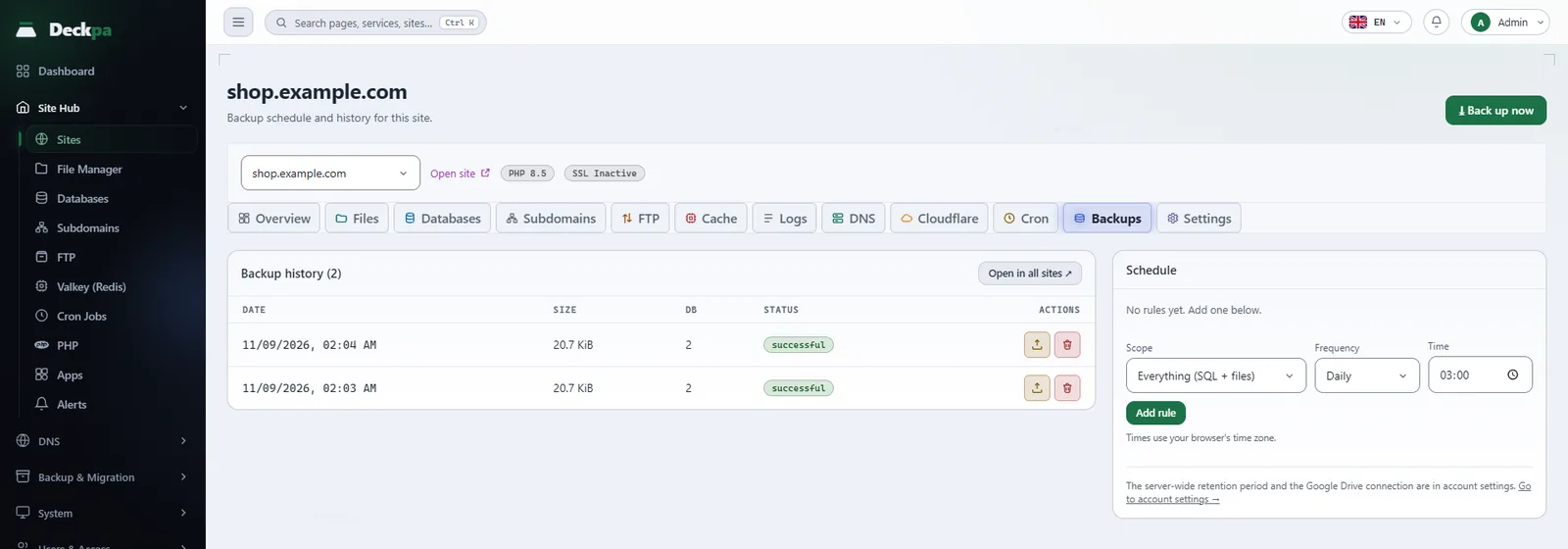
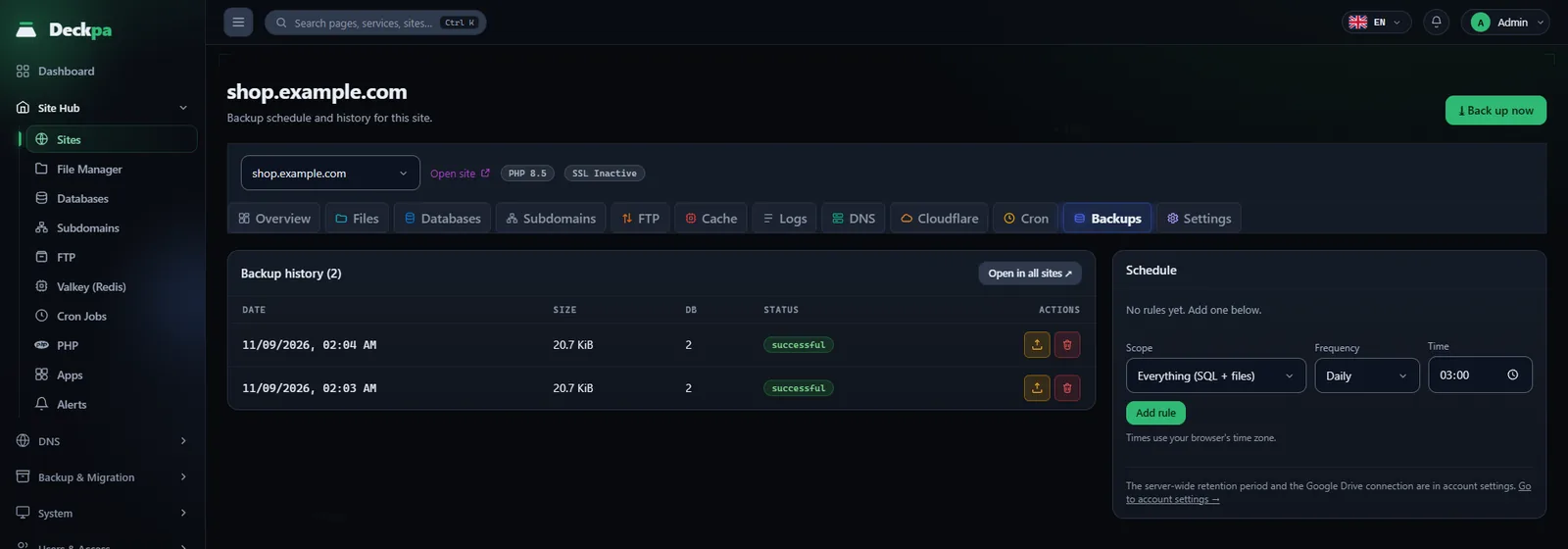
The schedule can be set to daily or weekly, or turned off completely. Retention is controlled by two separate settings:
- Local retention (days) — archives on the server older than this are deleted automatically so the disk does not fill up.
- Cloud retention (days) — a separate period for cloud copies, independent of local retention. 0 means unlimited; the field is off when no cloud destination is connected.
Retention periods apply server-wide and only an administrator can change them.
To back up a site right away, use Back up now; to back up all sites, use Back up all. It is a good habit to take a backup just before a big change.
Restoring
Open the site's Backup history window, pick an archive and restore it. You choose what to restore (files, databases). The selected items are overwritten and this cannot be undone; any changes made after the backup was taken are lost.
Taking a backup of the current state before a risky restore lets you go back if you pick the wrong archive.
Verifying a backup
You only find out whether a backup works when you open it. You can list the contents of an archive on the server as root with this command (replace the date and domain with those of your own backup):
tar --zstd -tf /home/.deckpa-data/example.com/backups/2026-08-27/example.com.tar.zst | head
The most reliable check is to restore a backup to a second server a few times a year.