Alerts
Alerts evaluates the rules defined for the server and for sites every minute; open alerts show in the panel's top bar.
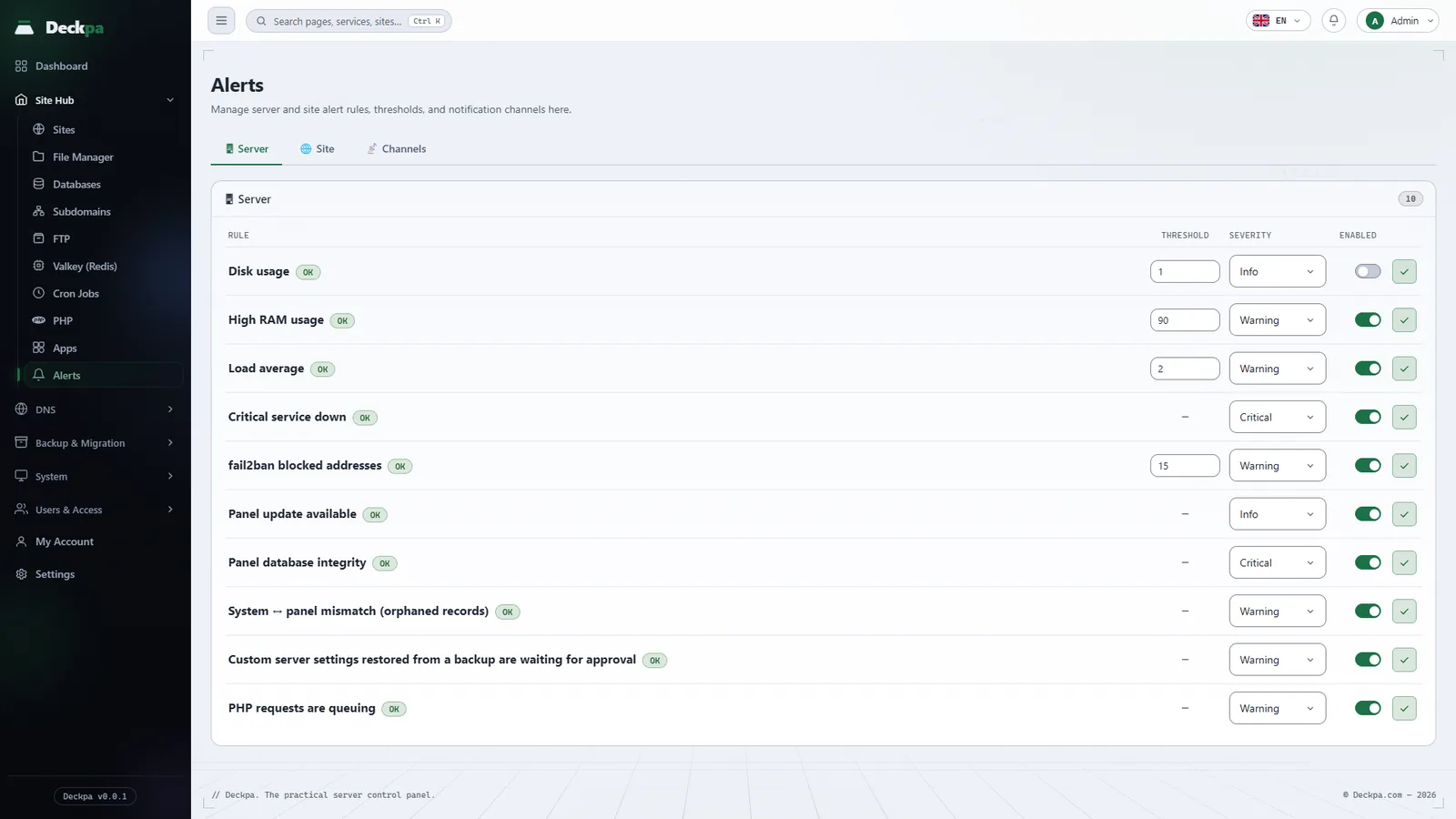
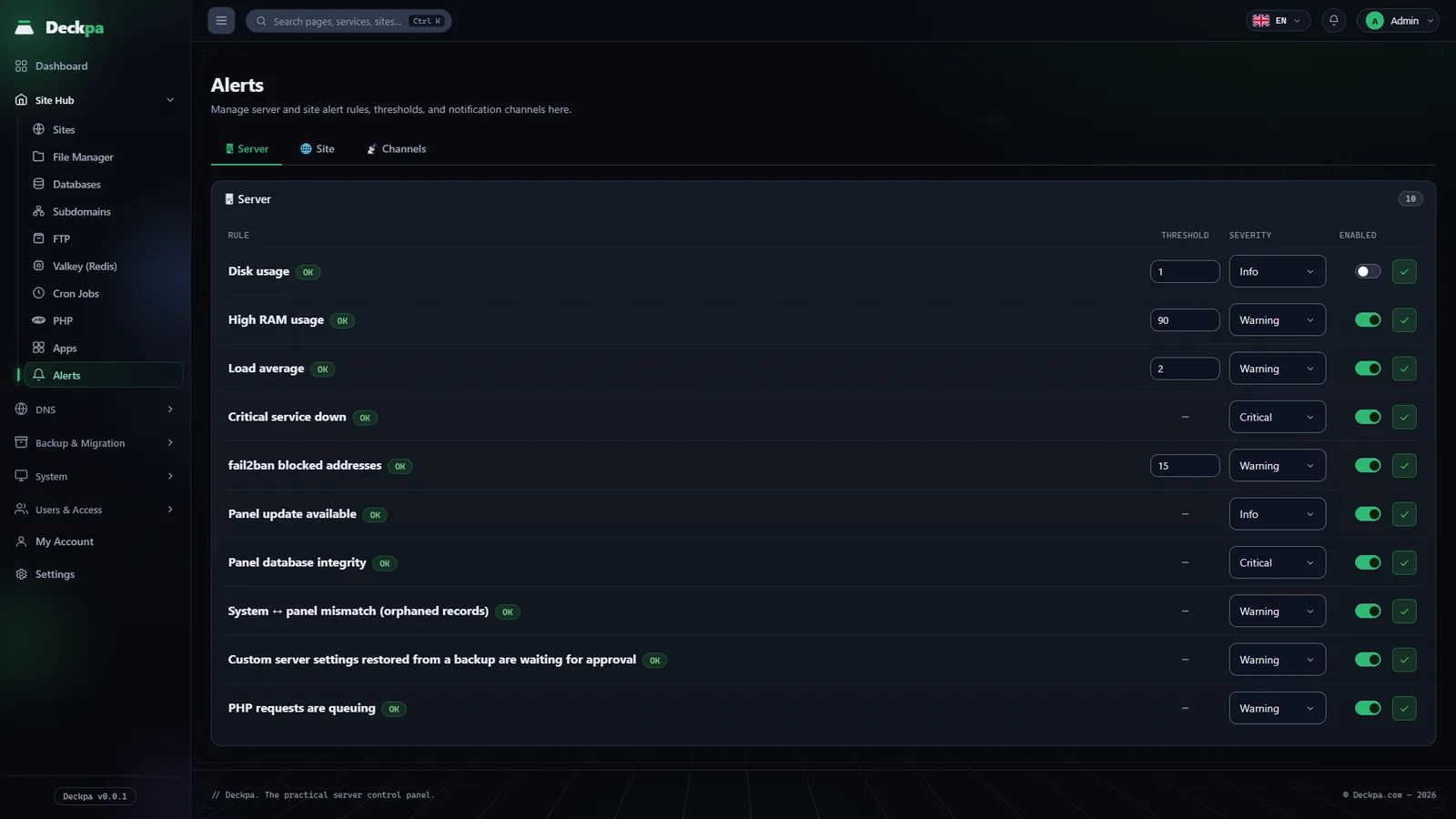
What Alerts does
Alerts evaluates the rules defined for the server and for sites every minute. When a rule is violated, an alert opens; when the problem goes away, the alert closes. You see open alerts on the bell icon in the top bar of the panel; the number on the badge is the number of open alerts, and the View all link takes you to the Alerts page. You do not need to set up a channel for the bell.
The page is under Site Hub → Alerts and has three tabs: Server, Site and Channels. Administrators see all three. Other users see only the Site tab and set the rules for their own sites. Server rules and channels are for administrators only.
Each rule row has the rule name, its state (Active or OK), a threshold, a Severity (Info, Warning, Critical) and an on/off switch. The threshold, severity and on/off setting are saved together when you press the Apply icon at the end of the row. The gray detail in a row shows what is being violated while the alert is open.
Server rules
On the Server tab, the administrator sets ten rules. For rules that have a threshold, the default value is given in the text.
- Disk usage — opens when the usage percentage of the fullest disk partition reaches the threshold. No single total is used, so a server where
/homeis full while/is empty does not go unnoticed. Default threshold 85, severity Warning. - High RAM usage — when the memory usage percentage reaches the threshold. Default threshold 90, severity Warning.
- Load average — when the 1-minute load average reaches the number of CPU cores multiplied by the threshold. The threshold is a multiplier: with the default of 2, the limit on a 4-core server is 8. Severity Warning.
- Critical service down — opens when OpenLiteSpeed, MariaDB, Pure-FTPd, Deckpa API or the Deckpa system service is installed but not running. It has no threshold. Severity Critical.
- fail2ban blocked addresses — opens when the total number of addresses blocked in the last 24 hours reaches the threshold; this can be a sign of an attack. Default threshold 15, severity Warning.
- Panel update available — when a new panel version is released. It has no threshold. Severity Info.
- Panel database integrity — when an integrity error is found in the panel's own database. It has no threshold. Severity Critical.
- System ↔ panel mismatch (orphaned records) — when records exist on the server with no counterpart in the panel (or the other way around). It has no threshold. Severity Warning.
- Custom server settings restored from a backup are waiting for approval — custom configuration files of a site restored from a backup do not activate on their own. The alert stays open until the administrator approves or discards them. It has no threshold. Severity Warning.
- PHP requests are queuing — when requests are waiting in the queue of any PHP pool. It has no threshold. Severity Warning.
Site rules
On the Site tab you pick a site and set the seven rules for that site. A site owner can change the threshold and severity for their own site, or turn a rule off.
- SSL certificate expiring — opens when the number of days left before the certificate expires reaches the threshold. Default threshold 14, severity Critical. Sites whose certificate was never installed or cannot be read are not part of this rule.
- Disk quota full — when quota usage reaches the threshold percentage. Because the quota applies to the account and not to a site, usage is added up across all of the account's sites and the alert is attached to one of the account's sites. Default threshold 90, severity Warning.
- Backup failed or missing — when the latest backup of a site that has a backup schedule failed, or when its archive cannot be found on disk. A site without a schedule does not get a "no backup" alert, and neither does a site whose schedule has not run yet. It has no threshold. Severity Critical.
- Cloudflare connection lost — when the Cloudflare connection of an account that has tried the Cloudflare setup at least once does not work in two consecutive measurements. It has no threshold. Severity Warning.
- PHP fatal error — when a fatal error appears in the site's PHP error records. It has no threshold. Severity Warning.
- Domain registration expiring — when the number of days left before the domain registration expires reaches the threshold. Domains whose registration date cannot be looked up (some extensions do not provide it) are not part of this rule. Default threshold 30, severity Warning.
- Virus scan finding — when a site has a finding that has not been handled. The alert stays open until the finding is quarantined, ignored or cleaned. It has no threshold. Severity Critical. For how to handle findings, see Virus Scan.
How an alert opens and closes
Every rule is measured once a minute. The state of a rule goes through three stages:
- OK — the rule is not being violated.
- Active — the rule is being violated. For the disk, RAM, load, service, PHP queue, orphaned record, backup and Cloudflare rules, the alert opens when the violation is seen in two consecutive measurements, so a momentary fluctuation does not produce an alert. The other rules open on the first measurement.
- Resolved — the problem is gone. Closing is also a notification. On the next clean measurement the rule returns to OK and drops off the list of open alerts.
A notification is sent once, when the state changes: when the alert opens and when it resolves. You do not get a new notification every minute while the problem continues.
Severity decides how the alert is labeled in a notification. Each rule's own definition gives the default severity; you can change it by choosing Info, Warning or Critical in the Severity list.
Notification channels
In addition to the bell in the panel, you can add two kinds of channel on the Channels tab. Adding channels is available to administrators only. There is no email notification.
- Webhook — when an alert changes state, a
POSTrequest with the alert information in its body is sent to the address you provide. The address must start withhttporhttpsand must resolve to a publicly reachable address; local and private network addresses are rejected both when you save and at every delivery. A request counts as failed if it gets no answer within 10 seconds or if the response code is 300 or higher. - Telegram — you enter a Bot token and a Chat ID. You get the token from BotFather and the chat ID after you start a conversation with the bot. The message contains the server's IP address (the domain for a site rule), the rule name, the state, the severity, the detail and the time. If the panel's address can be determined, a button that goes to the panel is added under the message.
The webhook body carries these fields:
{
  "rule_id": "disk_full",
  "domain": "",
  "severity": "warn",
  "state": "firing",
  "detail": "/home 87.3%",
  "at": "2026-11-09T10:15:00Z"
}
The state field is firing when the alert opens and resolved when it resolves. For server rules, domain is empty. The values are examples.
The channel list shows only the label, type and status; the webhook address and the bot token are never shown again. Each channel has Test, Disable (then Enable) and Delete buttons. If you delete a channel, alerts that use it no longer send notifications. After you add a channel, verify it with Test first.