Cron jobs
Add cron jobs that run as the site user with ready-made templates; the output is written to a log file.
How it works
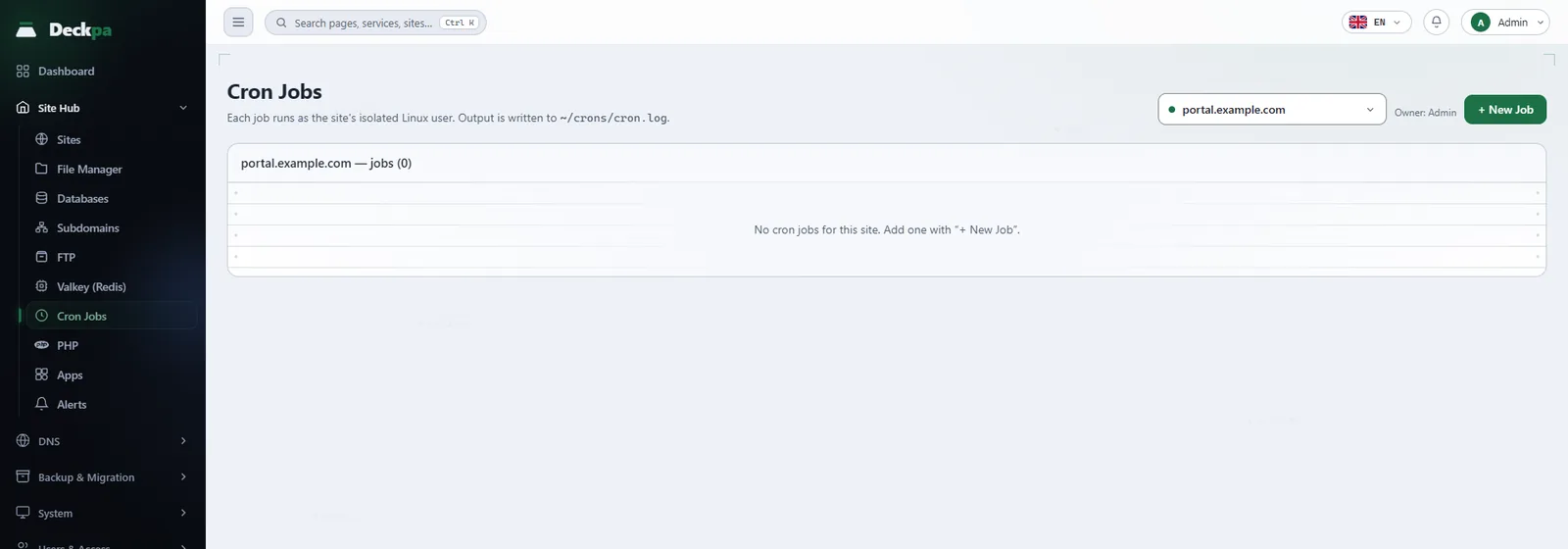
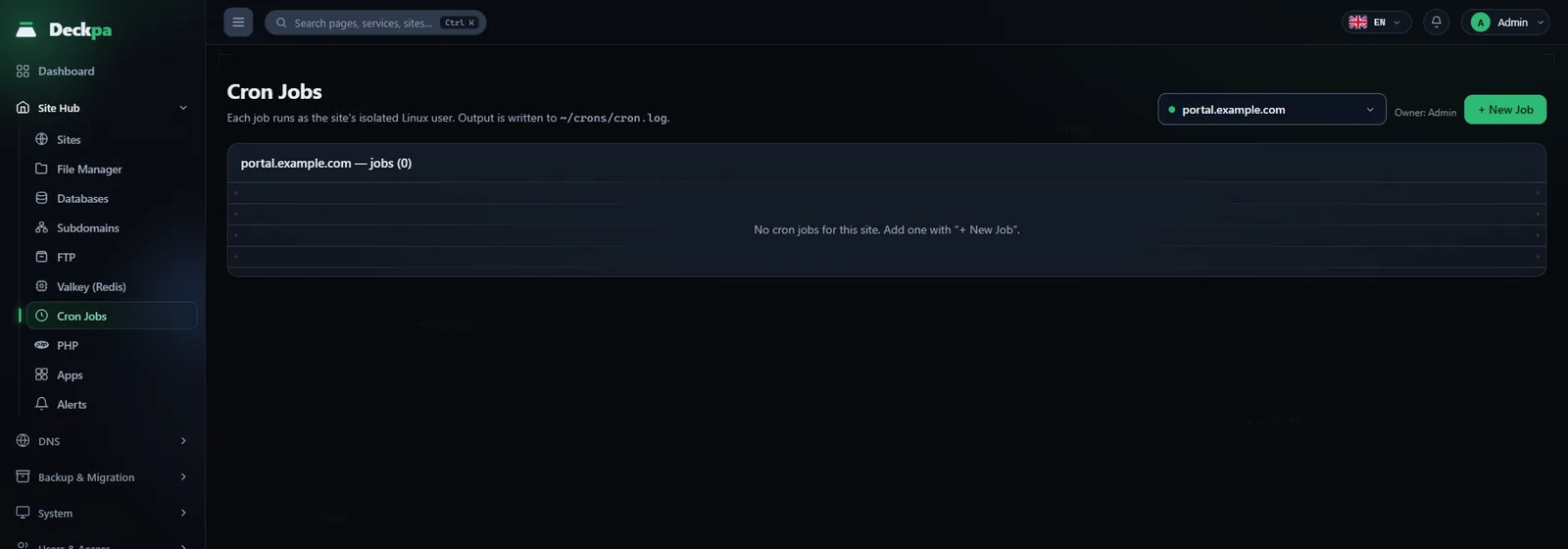
You manage scheduled jobs from Site Hub → Cron Jobs or from a site's Cron tab (see Site Hub). The site selector at the top of the page chooses which site's jobs you are looking at; the list shows the Schedule, Command and Note columns.
Each job is written to the crontab of the site's Linux user as a line marked by the panel, and runs with that user's privileges. The panel manages only the lines it added itself. You cannot edit a job afterward; to change one, delete it and add it again. A second job with the same schedule and command cannot be added.
A job runs in the site's own environment: the crontab gets a TMPDIR line that points to the site's private temporary directory, and every job starts with umask 077. As a result, files created by a job are readable only by the site user.
Adding a job
The New Job button opens a three-step wizard: Job template, Schedule and Confirm. On the last step the panel shows the command it will run under What will run. If you like, you can write a note for the job (for example "WordPress scheduled job"); the note appears only in the list. Add job writes the job to the crontab. To remove a job, use the delete icon on its row; the panel asks "Delete this cron job?" to confirm.
The panel builds the command for you, so you do not need to write one by hand. The PHP path in the commands is a link that follows the site's PHP version; when you change the site's PHP version, the jobs automatically run with the new one (see PHP version and settings). A badge such as "PHP 8.4" next to a job in the list shows this link.
Ready-made job templates
- WordPress cron — triggers the site's
wp-cron.phpon a schedule. To turn off the scheduler that WordPress triggers on visitor requests and use a real cron job instead, add the linedefine('DISABLE_WP_CRON', true);towp-config.php. - Laravel scheduler — runs
artisan schedule:run. For Laravel's own scheduler, choose Every minute as the frequency. - Your own PHP file — runs a
.phpfile you pick inside the site directory. The path is relative to the site directory (for examplescripts/cleanup.php), can contain only letters, digits,_,.,/and-, and cannot leave the directory with... - Request to an external URL — sends a request to the address you enter, on a schedule. The panel makes the request with a
curlcommand that runs for at most 30 seconds. The address must start withhttp://orhttps://and can contain only letters, digits and the characters. - / : ? & = % _. If the address is written directly as an IP address and that address is local (such as127.0.0.1) or a private network address, it is refused. - Free-form command — you write a shell command directly. Only the administrator account sees this template; other accounts get the message "Custom commands are available to administrators only. Select a ready-made template." A command cannot contain line breaks or the
%character, because they have a special meaning in a crontab.
Schedule
On the schedule step, in Basic mode you pick a Frequency: Every minute, Every 5 minutes, Hourly, Daily, Weekly, Monthly or Yearly. Depending on your choice, the Hour, Minute, Day, Day of month and Month fields open. The panel converts these choices into a crontab expression and shows it on the confirm step.
The administrator account also has an Advanced mode. In this mode you write the five-field cron expression (minute, hour, day of month, month, day of week) yourself, or use a keyword such as @daily. Each field can be *, a number, a range such as 1-5, a step such as */10, or a comma-separated list. Day and month names (for example mon) are not accepted; use numbers.
*/5 * * * *     every 5 minutes
0 3 * * *       every day at 03:00
30 2 * * 0      Sundays at 02:30
0 0 1 * *       the 1st of each month, at midnight
@hourly         at the start of every hour
The accepted keywords are limited to @reboot, @yearly, @annually, @monthly, @weekly, @daily, @midnight and @hourly.
Output and suspension
The output of every job (both normal output and error messages) is appended to the site's cron.log file. This file is not in the site's home directory; it is in the panel's own directory on the server, and it does not appear in the File Manager:
tail -n 50 /var/lib/deckpa/crons/example.com/cron.log
The file belongs to the site user and is kept with permissions that only that user can read and write (0600); the server administrator can read it as root. The output of a job added for a subdomain is written to the cron.log file in the directory named after the subdomain itself. If you need to see a job's output from the panel, make your script write its own log to a file inside the site folder.
The administrator sees the server's cron service record on the Cron tab of the Logs page: that is how you tell whether a job was triggered. If a job was triggered but did not give the result you expected, the problem is usually inside the job itself and shows up in cron.log.
When you suspend a site, its scheduled jobs stop: the panel does not delete the job lines, it only disables them, and the jobs become active again when the suspension is lifted.
Common problems
- A job with this schedule and command already exists — a second job with the same schedule and command cannot be added. Delete the existing job or change the schedule.
- Unknown task template — the templates do not work if the site's PHP version is not installed on the server. Pick an installed version on the site's Settings tab.
- Invalid URL — in the external URL template, the address must start with
http://orhttps://and consist of the allowed characters. Addresses that contain#or+are not accepted. - Invalid file path — in the "Your own PHP file" template, you can pick only a
.phpfile inside the site directory. - A job never runs — check that the site is not suspended, that the schedule shows the moment you expect, and that the command is written to run as the site user. The administrator can check on the Logs → Cron tab whether the job was triggered.