File Manager
Browse, edit, upload and repair permissions of a site's files from the browser; every action runs as the site user.
Access and scope
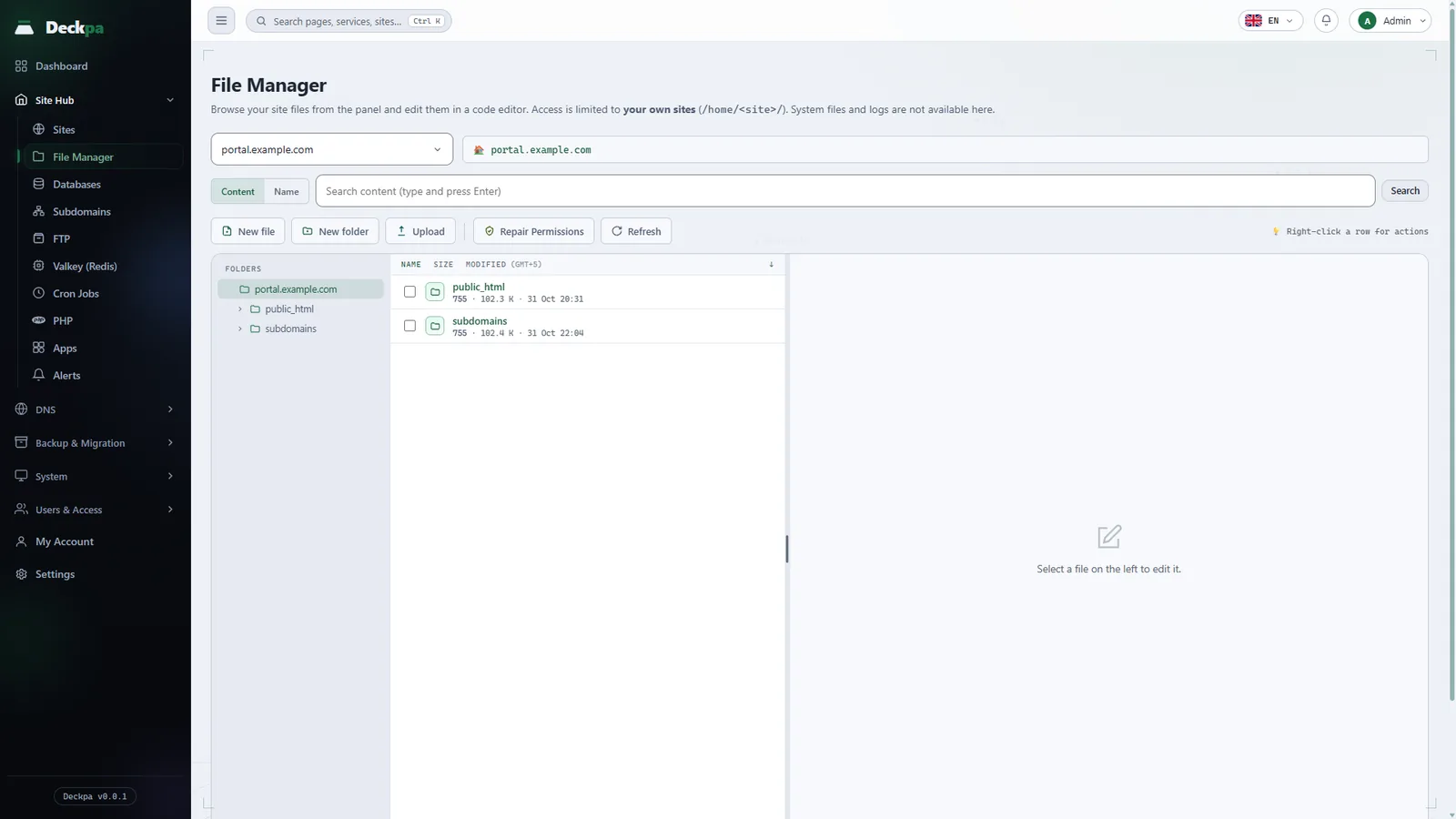
You can open the File Manager in two ways: from Site Hub → File Manager in the sidebar, or from the Files tab inside a site (see Site Hub). The Site list at the top of the page selects which site's files you are looking at; it contains only the sites you are authorized for. If you have no sites yet, the page asks you to create one on the Sites page first.
Access is limited to the site's home directory (for example /home/example.com/). The document root is the public_html folder in that directory, and by default the document roots of subdomains also sit inside the same home directory. Shortcuts that point outside the site, such as the log and backup directories, are not listed. You find backups and logs in the Backups and Logs sections, not on this screen.
Browsing and searching
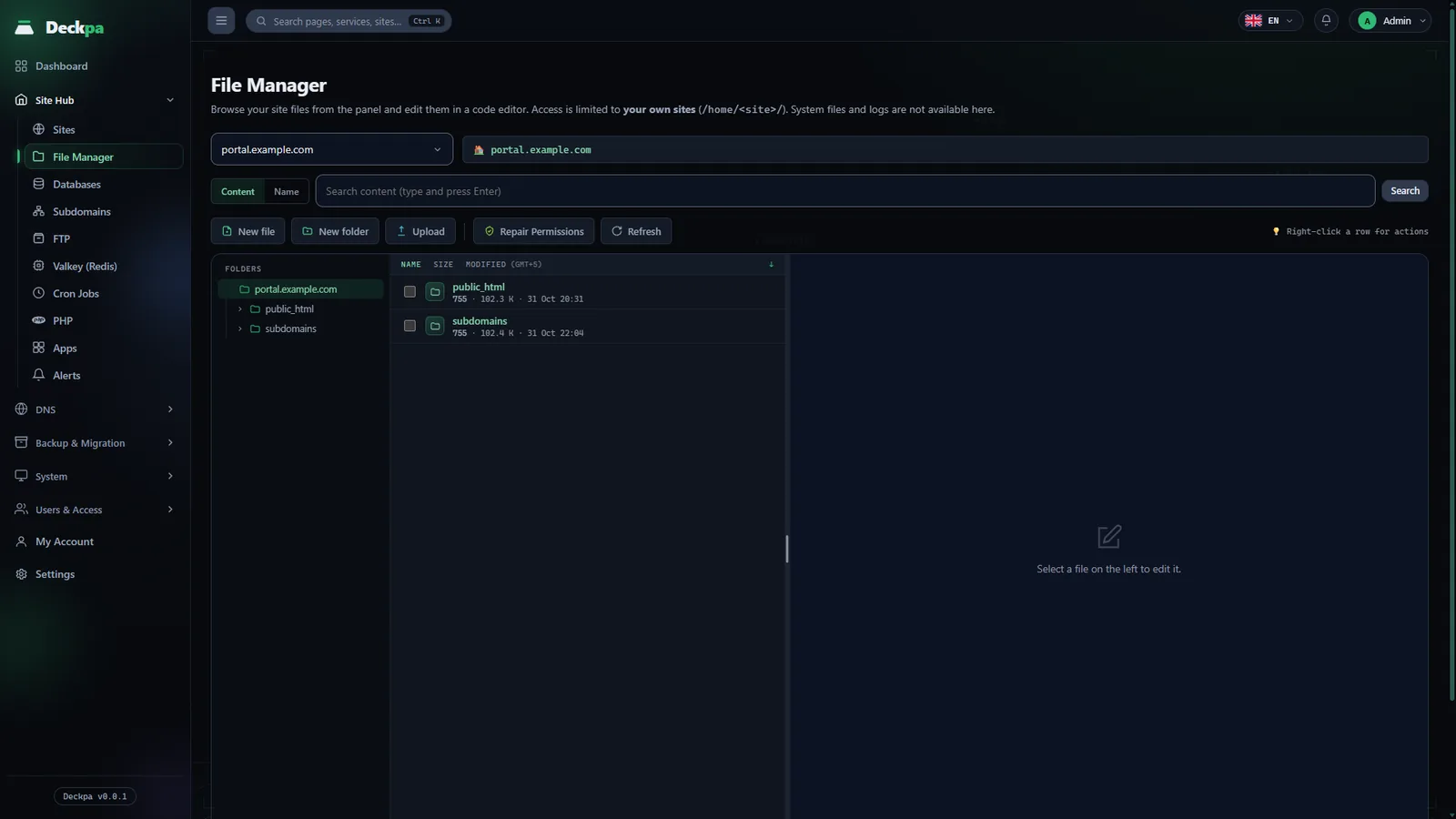
The screen has three parts: the Folders tree on the left, the list of the open folder in the middle, and the editor on the right. Click the Name, Size and Modified headings in the list to change the sort order, and click the segments in the path bar at the top to go back up to parent folders.
Right-click a row to open the actions menu for that item: Open or Edit, Download, Rename, Copy, Extract, Compress, Permissions and Delete. When you download a folder, it arrives as a single archive through Download (.tar.gz).
The Content and Name buttons next to the search box choose the type of search: the first searches the text inside files, the second searches file and folder names. Type at least 2 characters and press Enter. Search covers only the folder that is currently open; to search the whole site, go back to the root folder first. The result list shows at most 300 rows, at most 40 matches are listed per file, and a search is limited to 12 seconds, so on very large sites narrow the search to a subfolder. Content search skips archives, images, audio and video files, fonts and executables. Use the Clear button to leave the search.
Editing
When you click a text file, it opens in the code editor on the right. The editor highlights syntax for files such as .php, .js, .css, .html, .yml and .sql. Save with the Save button or Ctrl+S; Ctrl+F opens a find box inside the file. The Changes button shows the last saved version of the file next to its current version, so you can review what you changed before saving.
- Syntax warning — if a bracket or quote is left unclosed, or a
jsonfile is invalid, the editor warns you before saving. You can continue with Save anyway. - Unsaved changes — the panel warns you if you open another file or switch sites while there are unsaved changes.
- Images — image files (such as
.png,.jpg,.gif,.webpand.svg) are previewed in the editor area. - .htaccess — when you save this file, the panel itself triggers the web server to re-read its rules.
Only text files open in the editor. A binary file, or a text file larger than 768 KiB, does not open; download it, edit it on your computer and upload it again.
Upload, archives and bulk actions
New file and New folder in the toolbar create an empty item. With Upload you can pick one or more files, or you can drag and drop files straight onto the list area; the files are uploaded to the folder that is currently open. You cannot upload while search results are showing, so leave the search first. A single file can be at most 512 MiB, and a progress bar appears during the upload.
- Compress — writes a file or folder as
.zipor.tar.gznext to the source, named<name>.zipor<name>.tar.gz. If a file with that name already exists, the action is refused; move or delete it first. The site's root folder cannot be compressed. - Extract — extracts
.zip,.tar.gz,.tgzand.tararchives into the folder that contains the archive. Existing files with the same name are not overwritten; they are kept. If the extracted size would exceed 20 GiB, or the disk does not have about 1.3 times the extracted size free, the action is refused before it starts. - Bulk actions — when you select several items with the boxes at the start of the rows, a {n} items selected bar appears at the top. From there you can Move the selection (a folder picker opens), Archive it (creates one timestamped
.tar.gzin the open folder), change its Permissions, or Delete it. You can select at most 300 items at a time. Each item is checked separately; if some are refused, the panel reports how many succeeded.
Permissions
The Permissions item of a row shows the Read, Write and Execute boxes for Owner, Group and Others, along with the equivalent octal value (for example 644). You can set the value with the boxes or with the octal field; values from 000 to 777 are accepted. When you set permissions in bulk on a selection that contains both files and folders, the panel shows two separate grids, because giving a folder a file permission removes its execute bit and the folder can no longer be entered.
The Repair Permissions button in the toolbar fixes the whole site in one step: files become 644, folders become 755, and ownership is given to the site user. It is the first thing to try if you copied the site in from outside or started getting 403 or 500 errors after an upload.
Limits and protected items
- Protected items — the site's root folder and
public_htmlcannot be deleted, moved or renamed; the menu marks them as protected. The document root of a subdomain, and any folder that contains it, also cannot be deleted or moved; delete the subdomain in the panel first. - Sensitive files — the panel asks for an extra confirmation before deleting
.env,wp-config.php,.htaccessand.htpasswd, because deleting them can break the site. - List limit — at most 5000 items are listed in one folder.
- Time limits — copying a folder is limited to 60 seconds, and compressing or extracting an archive to 5 minutes. If a very large action times out, split it into smaller parts.
- Permission — viewing, editing and deleting files are separate permissions. If your account has no edit permission, you can see the list but cannot save or upload.