My Account and account security
The My Account page brings together your password, two-factor authentication, recovery codes and open sessions. Sign-in lockouts and bans work on the server side.
Password rules
The password rule is the same during setup, on the Users page and on the My Account page: at least 12 characters, including at least one letter and one digit. Only a-z and A-Z count as letters, so a password made up only of accented letters and digits is not accepted.
To change your password, go to My Account → Change password, type your current password, the new password and its confirmation, then press Update password. When it succeeds, every session except the one on this device is closed, along with any open phpMyAdmin and OLS console sessions. A stolen session stops working as soon as the password changes.
Passwords are not stored as plain text; they are hashed with argon2id. On the same page you can also change your Full name, Interface language and profile photo. The photo is cropped to a 256×256 square in your browser and converted to WebP; only the reduced version is uploaded to the server.
Two-factor authentication
Two-factor authentication is optional; the panel does not require it. When it is on, signing in requires the code from your authenticator app, even if someone knows your password. We recommend keeping it on for administrator accounts.
To turn it on, go to My Account → Two-Factor Authentication → Turn on two-factor authentication:
- Scan the QR code on the screen with your authenticator app, or enter the key shown on the screen by hand. The codes are compatible with Google Authenticator: 6 digits that change every 30 seconds.
- Type the 6-digit code the app generates into the Authenticator code field and press Verify and save.
- When you save, your recovery codes are shown once; store them right away.
Once it is on, signing in takes two steps. First your username and password, then the Two-factor verification screen asks for the code from the app or a recovery code. After the password is accepted, you have 5 minutes to enter the code; if that time runs out, sign-in starts over. The code is accepted even if your phone's clock is off by some tens of seconds: the panel also accepts the previous and the next 30-second code.
Actions that weaken the protection ask for your password again: Turn off two-factor authentication, Set up again (new key) and Generate new codes. Because of this, someone who takes over a session you left open cannot remove the protection without knowing your password. Turning it on for the first time does not ask for a password. When you turn it off, your recovery codes are deleted too; when you set it up again, the old key and the old codes stop working.
Recovery codes
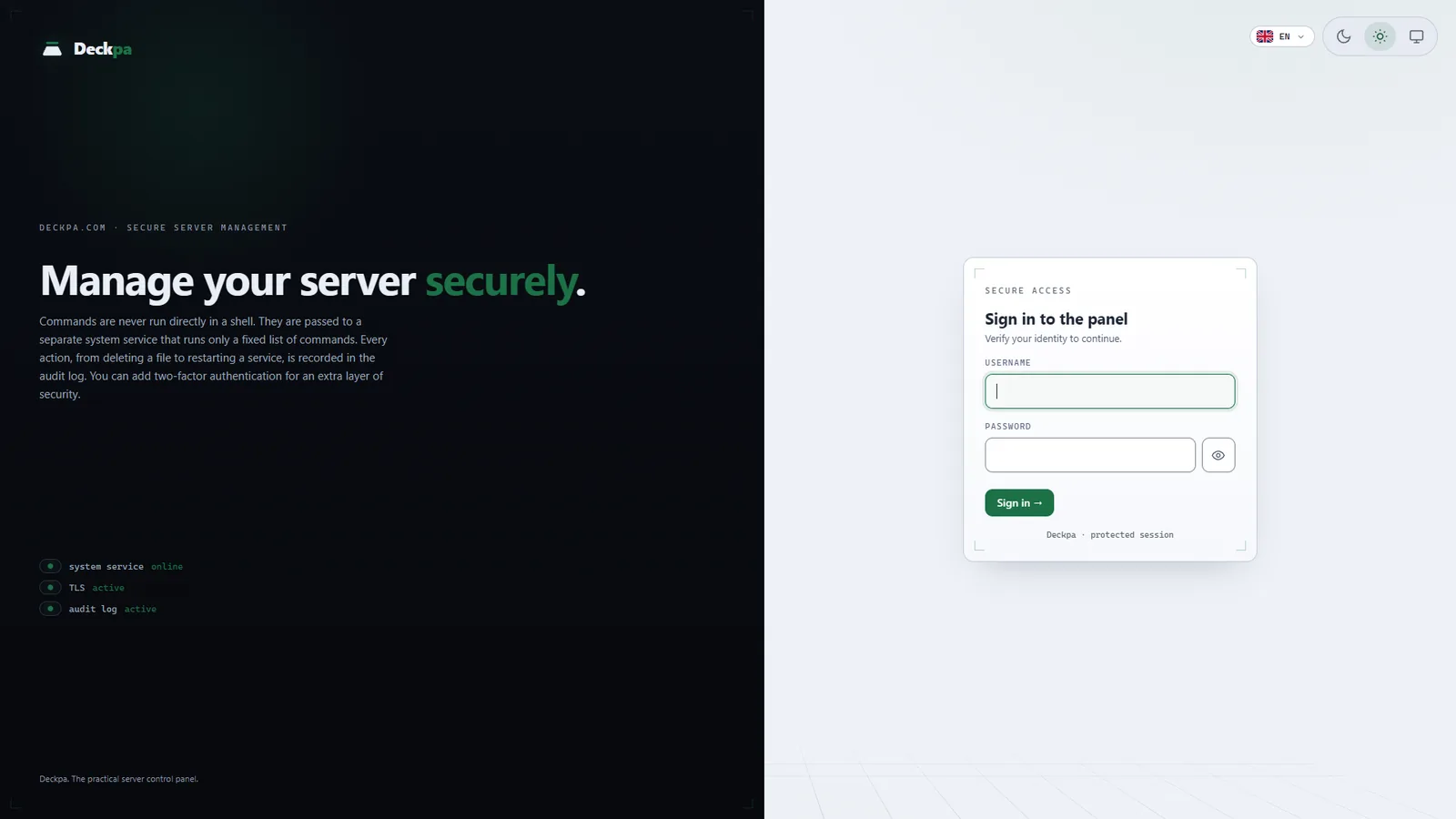
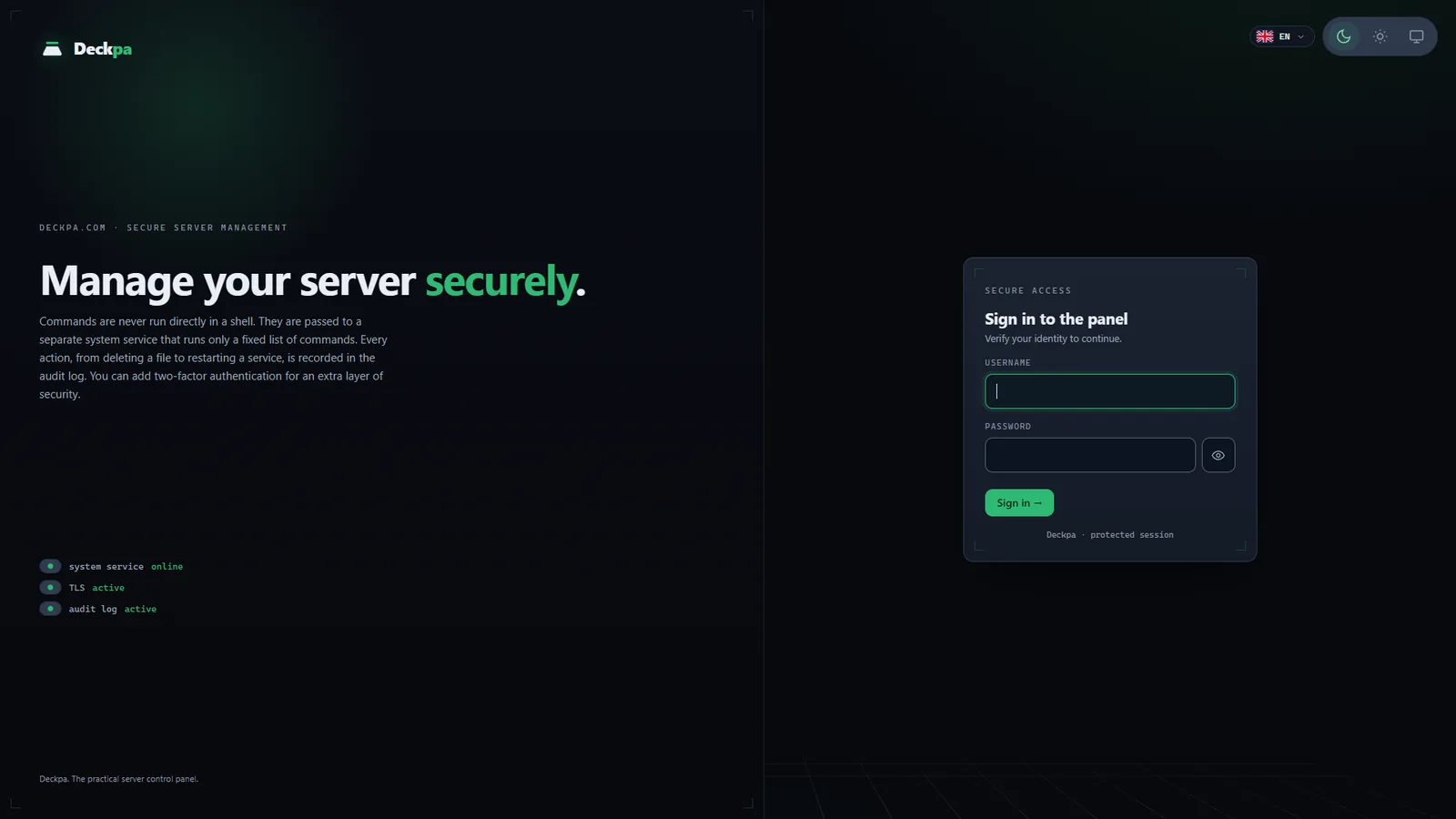
When two-factor authentication is turned on, you receive 10 recovery codes. They look like ABCD-EFGH-JKMN-PQRS, in groups of four characters. Each code can be used only once. If you cannot reach your phone, use the I can't access my phone. Use a recovery code link on the sign-in screen and type a code.
- How many codes are left appears on the My Account page as "10 of 10 recovery codes are unused."
- Generate new codes invalidates all current codes and issues 10 new ones. Delete the old codes from wherever you saved them.
- The panel stores only a digest of the codes. A lost code cannot be recovered from the server; you need to generate a new set.
If you can reach neither your phone nor your codes, the account's verification is reset on the server. The panel has no button that resets another user's verification; the administrator does it by connecting to the server over SSH as root:
deckpa list-users
deckpa disable-2fa ahmet
deckpa reset-user ahmet
list-users lists the users, their suspension state and whether verification is on. disable-2fa turns verification off completely and deletes the recovery codes; the user signs in with the password only and can turn it on again from My Account. reset-user asks for the new password twice (at least 12 characters), closes the user's open sessions and, if you want, generates a new verification key. For an administrator who forgot the password, reset-user is also the way to recover on the server.
Sessions
- Duration — a session lasts 12 hours. The cookie is sent only over HTTPS, scripts cannot read it, and it is not sent with requests coming from other sites.
- Tied to the IP address — a session is tied to the IP address it was opened from. If your address changes (for example, you turn on a VPN or switch to a mobile network), the session is rejected and you sign in again.
- Close other sessions — the button in My Account → Sessions closes every session except the one on this device. If you left the panel open on a computer you forgot about, use it first.
- Sign out — when you sign out, your open phpMyAdmin and OLS console sessions are closed too.
- Support sessions — if an administrator or reseller opened your account to help you, who did it and when is listed on the My Account page. You can end an open one right away with Close (see Users).
Sign-in lockout and bans
If the same username and the same IP address fail 5 times within 15 minutes, sign-in is locked with the message "Too many attempts. Try again in 15 minutes." Three things are useful to know:
- Password attempts and two-factor code attempts share the same counter; someone trying the 6-digit code over and over hits the same limit.
- The counter depends on the combination of username and IP address. Attempts from another address do not lock your account.
- The error on the password step does not say which field is wrong; the message is always "Incorrect username or password."
The lock lifts by itself after 15 minutes. If you do not want to wait, the administrator lifts it on the server. The server also writes failed sign-ins to the system journal, and if fail2ban sees 5 failed sign-ins from the same IP address in 10 minutes, it bans that address for 1 hour. The administrator can lift a banned address:
deckpa unlock ahmet
deckpa bans
deckpa unban 203.0.113.10
unlock clears a user's sign-in lockout. bans shows the banned addresses for the panel and SSH, and unban lifts the ban on one address; if you give no address, all bans are lifted.
/login. If you lock yourself out with the allow list, the deckpa clear-allowlist command on the server clears it.