Databases and phpMyAdmin
Create databases and users, grant privileges, and sign in to phpMyAdmin in one click without typing a password.
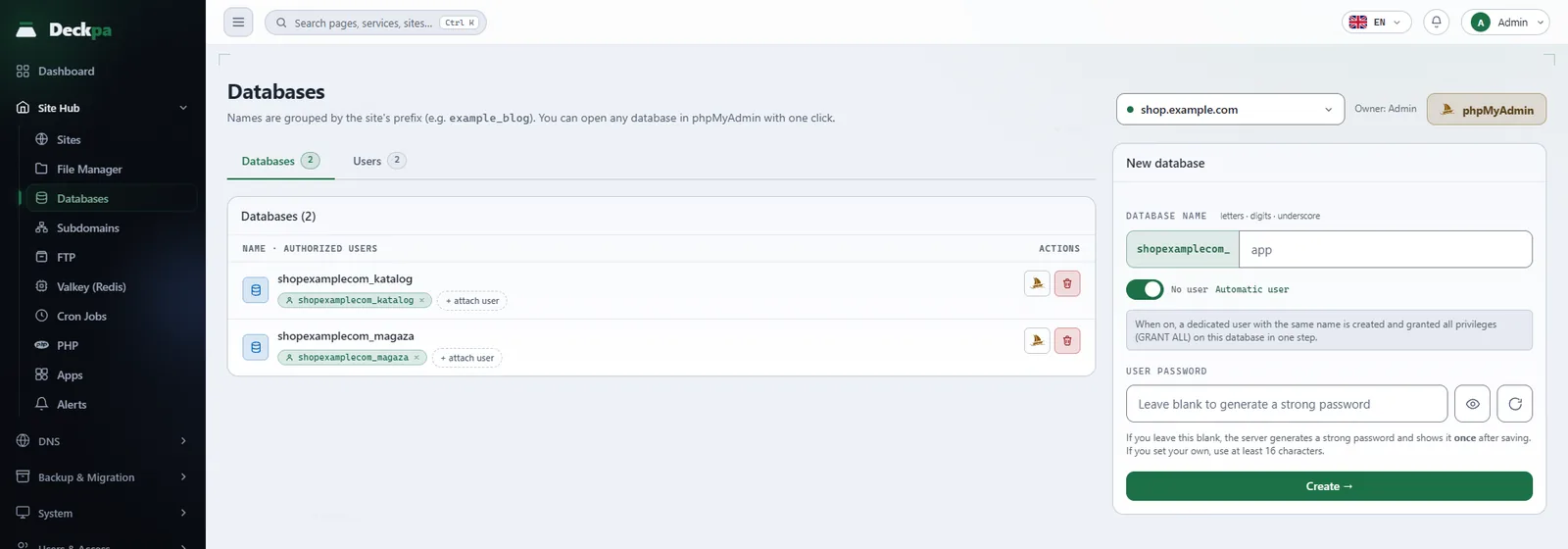
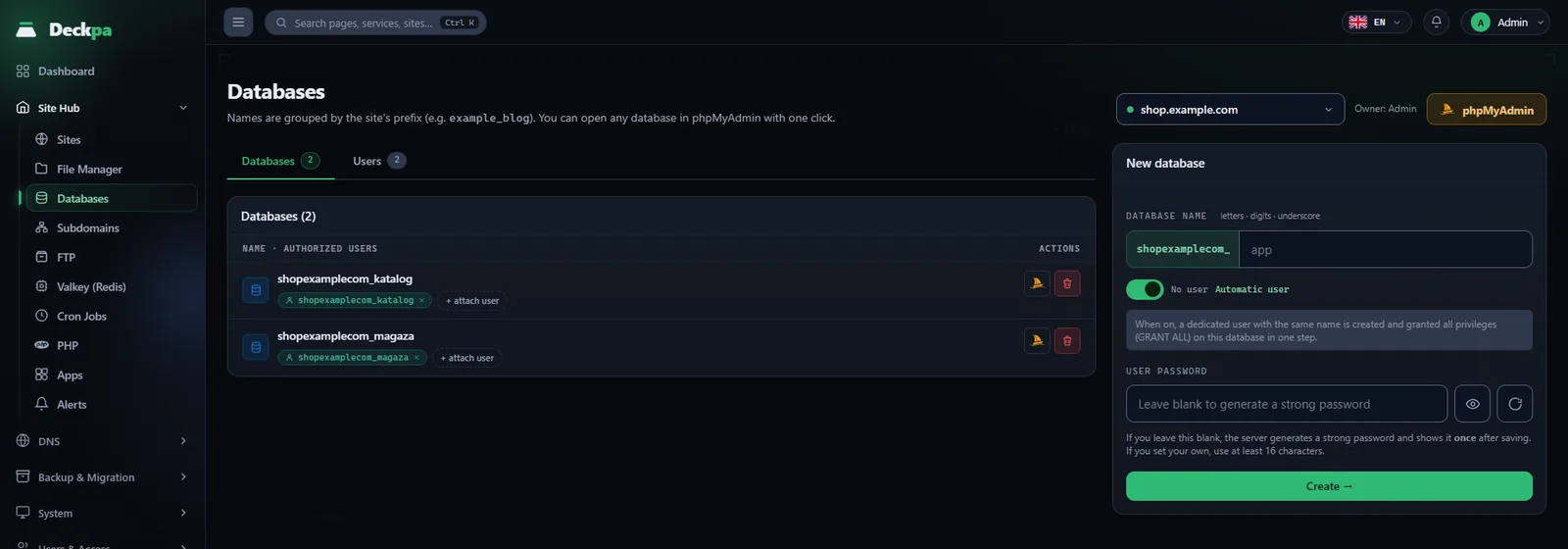
The page and naming
You manage databases from Site Hub → Databases or from a site's Databases tab (see Site Hub). With the site selector at the top of the page you can pick All sites or a single site; if you came from a site's tab, the list is already limited to that site. The page has two parts: the list of databases, and the database users on the Users tab. The database server is MariaDB (11.8 LTS).
Every database and every user belongs to a site, so you need to have created a site first. Names automatically start with the site's system user name; you can see it in the System user field on the site's Overview tab, and it is derived from the letters and digits of the domain. If the system user of example.com is examplecom, typing blog in the form creates a database named examplecom_blog. A name can contain only letters, digits and underscores, and uppercase letters are converted to lowercase. A database name can be at most 63 characters including the prefix, and a user name at most 32 characters.
Creating a database
- Select the site in the site selector. A site must be selected before you can add anything.
- Type the name in the New database form. The prefix is shown in front of the name you type.
- If Automatic user is on, the panel creates a user with the same name and gives it all privileges on the database, so both steps finish in one go. With this option the database name must be at most 32 characters including the prefix, because MariaDB user names are limited to that length.
- If you leave User password empty, the server generates a strong password. If you type your own, it must be at least 16 characters and contain only letters, digits, dots, underscores and hyphens.
- Press Create →.
When the server generated the password, it is shown once in the New database password window. After you close the window, you cannot view the password again.
wp-config.php, .env). If you lose it, the fix is to reset the user's password and update the configuration file.
Users and privileges
A database can be attached to several users and a user to several databases; the links appear as small labels on the rows. Users can connect only locally: from localhost (socket) and 127.0.0.1.
- New User — on the Users tab, with a site selected, you create a user by giving a username and a password. A new user is not attached to any database; use the next step to attach it. The password rules are the same as when creating a database.
- attach user — this button on a database row gives the user you pick from the list all privileges on that database (Attach →).
- Revoke — the × on a user label removes that user's access to that database only. The user, and the database's other links, stay as they are.
- Reset password — generates a new password for the user. The old password stops working immediately, so you also need to update your application's configuration file.
- Delete — deletes the user. The databases the user was attached to are not deleted.
One-click phpMyAdmin sign-in
The phpMyAdmin button at the top of the page opens phpMyAdmin in a new tab without asking for a password. The small Open in phpMyAdmin icon on a database row takes you straight to that database's structure page. As a site owner you see only the databases of your own sites in phpMyAdmin; the server administrator sees all databases.
Here is how the sign-in works: when you press the button, the panel creates a single-use token, phpMyAdmin reads the token and opens your session, and the token is deleted immediately. The token is valid for 60 seconds, and the password is never sent to your browser. If you land back on the Databases page after pressing the button, the token was already used or has expired; press the button again. If the new tab does not open, allow pop-ups for the panel in your browser's pop-up blocker.
Connecting an application
Your application connects to the database from the same server. Use 127.0.0.1 as the host; the user name and database name are the prefixed names:
DB_HOST=127.0.0.1
DB_NAME=examplecom_blog
DB_USER=examplecom_blog
DB_PASS=password-shown-by-the-panel
For WordPress, the same values go into the DB_NAME, DB_USER, DB_PASSWORD and DB_HOST constants in wp-config.php. You can edit the file with the File Manager.
MariaDB listens only on 127.0.0.1, so you cannot connect directly from your own computer or from another server. To move data in or out, use phpMyAdmin's import and export features.
Deleting and common problems
When you delete a database, the panel asks you to type the database name to confirm. If you tick Also delete users that are linked only to this database, only the users that are not attached to any other database are deleted; users that are also attached to another database are left alone. Deleting cannot be undone, and without a backup the data cannot be recovered. Back up the site before deleting (see Backup and restore); a site backup includes all databases linked to the site.
- Could not connect to MariaDB — if this warning appears at the top of the page, the lists may be incomplete or out of date; your databases have not been deleted. Refresh the page once the problem is resolved.
- You have reached your plan's database limit — you have used all the databases in your plan. Delete a database you no longer use, or ask your administrator to upgrade the plan.
- The panel subscription has expired, so new resources cannot be created — in this state you cannot create new databases or users; your existing sites and databases keep running.
- Invalid database name — use only letters, digits and underscores, and stay within the length limit including the prefix.
- Too many connections — the number of connections each database user can hold at the same time is limited according to the server's memory. Applications that use persistent connections or a connection pool can hit this limit; reduce the number of connections.