Site migration
The Migration Wizard connects over SSH to a server that runs CyberPanel or Plesk and moves its sites, databases, PHP version and scheduled tasks to Deckpa. DNS records are not moved.
What is and is not migrated
The Migration Wizard connects over SSH to a server that runs CyberPanel or Plesk and moves the sites you pick to Deckpa. What it moves:
- Sites and their files — the web root of each site. Subdomains are installed together with their parent site.
- Databases — the databases that belong to the site, and their users. Database and user names change during migration; the new names are listed in the report.
- PHP version — if the version used on the source is installed on this server, the same one is used. If it is not, the site runs on a higher installed version, and the wizard shows you this before installing.
- Scheduled tasks — commands are carried over unchanged. If paths in them differ on this server, you need to fix them by hand.
- WordPress config file —
wp-config.phpis updated automatically only if the database it points to came with this migration. If it points to a database that belongs to another site or is not in the package, the file is left alone and the report shows a warning. The site address is never changed.
What is not migrated: DNS records (listed for reference only), SSL certificates (you get a new one after the migration), mailboxes (Deckpa has no email server), node_modules folders, files in the site's home directory that are outside the web root, custom sections added by hand to the server configuration, and background services tied to the site. The migration report shows a separate warning for each of these.
Before you start
- Permission — the wizard is in Backup & Migration → Migration Wizard. The administrator can use it. The built-in Reseller group does not include the Migration Wizard permission, so giving it to a reseller needs a custom group (see Permission groups and packages). A reseller can migrate only to itself and to its own customers.
- SSH access to the source server — you need the server address, the port (22 if left empty) and a user. You authenticate with a Password or a Private Key. If the user is not root, commands are tried with sudo; if neither works, the operation stops with a clear error before it starts.
- Nothing changes on the source — the script that runs on the source server only reads. Before it runs, you can inspect it with View the script that will run. Your credentials are kept in memory only while the operation runs and are never written to disk. The address, port and user are remembered in this browser; Clear saved details removes them.
- Target owner and package — the sites are created under the account of the user you choose. At install time, the site and database limits in that user's package are checked.
- PHP versions — if you install the source's PHP version first on the PHP page, the site runs on the same version.
Wizard steps
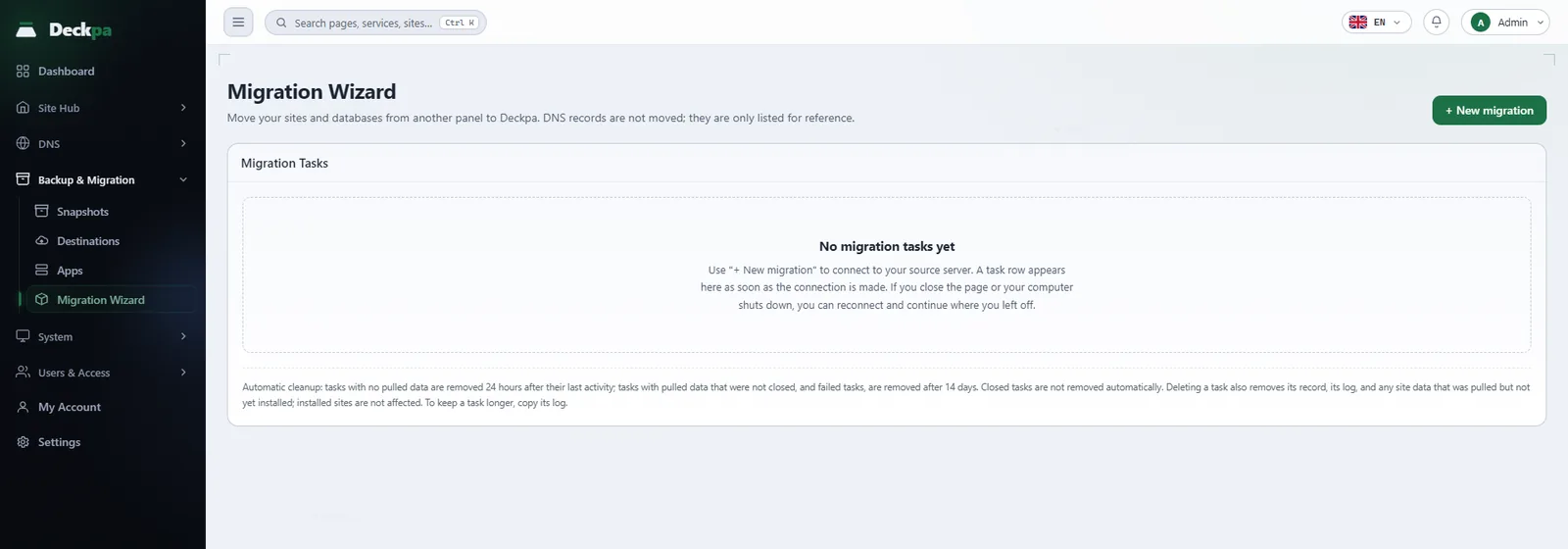
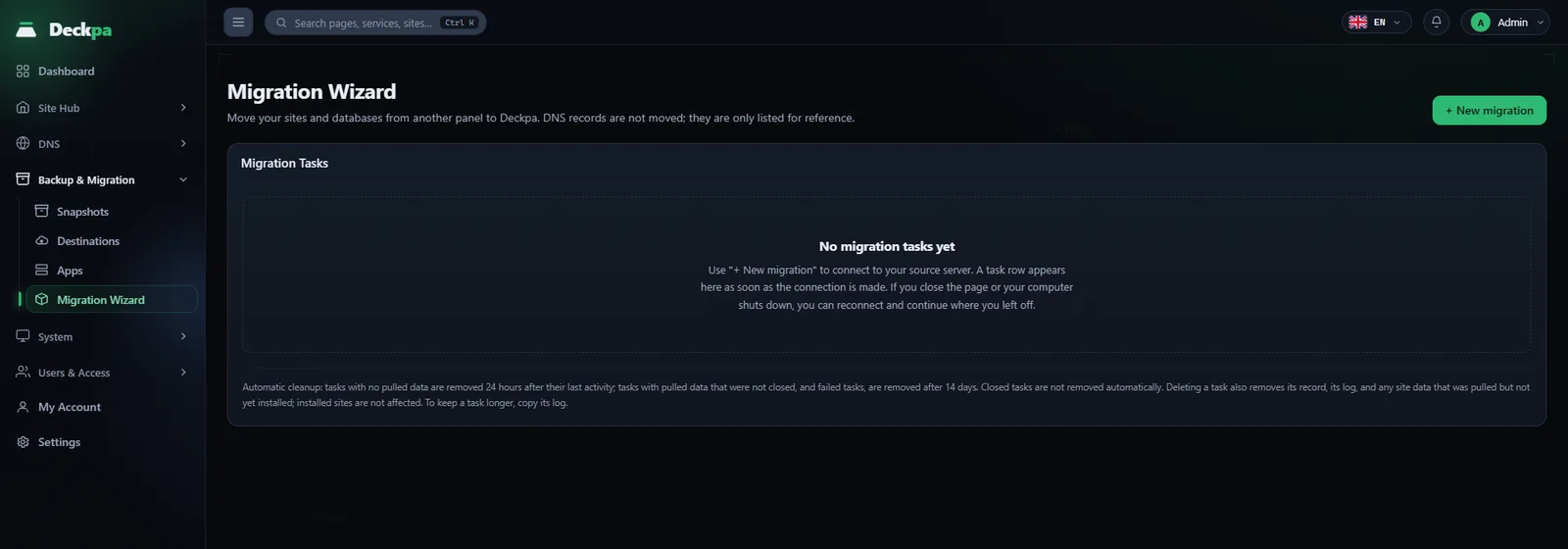
The Migration Wizard page shows the Migration Tasks list; + New migration opens the wizard. Even if you close the page or lose your connection, the task stays in the list and you can continue where you left off. The wizard has four steps:
- Choose Source — pick CyberPanel or Plesk, type the address, port and user, and press Connect →. If you are connecting to this server for the first time, the server's fingerprint is shown; make sure it matches the one on your server and press Confirm Identity and Continue →. The sites on the source are then listed; tick the ones to migrate and press Start Pull →.
- Pull — the selected sites are downloaded from the source. The progress bar and the log are live, and nothing has changed on the live system yet. If the connection drops, Resume continues without asking for the already pulled sites again. After this step you cannot go back to the source selection: sites you did not select when starting the pull cannot be added to the same task later.
- Checklist — the Findings section shows the number of sites, databases, DNS zones and scheduled tasks, along with warnings. Choose the target owner and tick the sites you want to install. If a site with the same name already exists on this server, installation does not start until you confirm by typing the domain exactly. If you confirm, a full backup of the existing site is taken automatically, the site is deleted, and the migrated site is installed in its place.
- Install — Install → installs the sites. If a site fails during installation, only that site's changes are rolled back and the other sites are not affected. For sites you did not tick there is Install the Rest, and when you are done there is Finish migration; the latter deletes the pulled temporary data from disk.
After each installation you can use Download report to get the migration report: each site's new PHP version, database names and users, what was not migrated, and warnings. Database passwords are not included in the report.
What to do after the migration
- Point DNS at this server. On the site's DNS tab, change the A record to this server's IP address (see DNS management). An SSL certificate cannot be issued until you do.
- Get a new SSL certificate. The certificate from the source is not imported; once DNS points here, issue a new one (see SSL certificates).
- Update the database settings. Database and user names change. In WordPress,
wp-config.phpis updated automatically if its own database came with the migration; in Laravel, fix the.envfile by hand with the new names from the report. The password is not in the report, so reset the user's password on the Databases page and copy it from there. - Open the site and check it. Try the home page, the admin login and file uploads. If the PHP version causes a problem, change it in the PHP section of the site's Settings tab in Site Hub.
- Review scheduled tasks and npm packages. Fix paths in tasks that differ from the source. Because
node_modulesis not migrated, if your application uses npm packages, runnpm installin its directory. - Finish the migration. Pulled sites that are not installed yet are kept for 14 days after the task's last activity, and then the task is deleted. Tasks with no pulled data are deleted after 24 hours. Closed tasks are not deleted automatically. Deleting a task does not affect installed sites.
Scope and limits
- CyberPanel and Plesk only. In the wizard, the cPanel and "Deckpa (another server)" cards appear with a Coming soon badge but cannot be selected. There is no cPanel adapter, and it is not tied to a near date in the development plan. Migrating by uploading a backup archive is not offered either; only pulling over SSH is available.
- The testing is limited. During development, the migration was tried end to end against one real CyberPanel server and one real Plesk server. You may run into unexpected situations with other versions and configurations. Try a single site first, and do not shut down the old server before you have checked the site. Files and databases on the source server are not modified, so a trial does not break the old site.
- Background services are not migrated. If a site has a background service (for example, an application server running next to the site), only its files come over; you need to run the service on this server yourself.
- If the web root is inside an application directory (as in Laravel), only the web root is copied; you need to move the rest of the application by hand and set the web root. The warning in the report points this out.
- PHP versions without security support. If the PHP version on the source has reached end of life, the panel does not install it; the site opens on a newer version and the application will most likely not run. The application needs to be made compatible with a current PHP version; the warning in the report names the site and the version affected.