Network & Access
Manage which IP addresses can reach the panel and which ports are open in the firewall.
What Network & Access manages
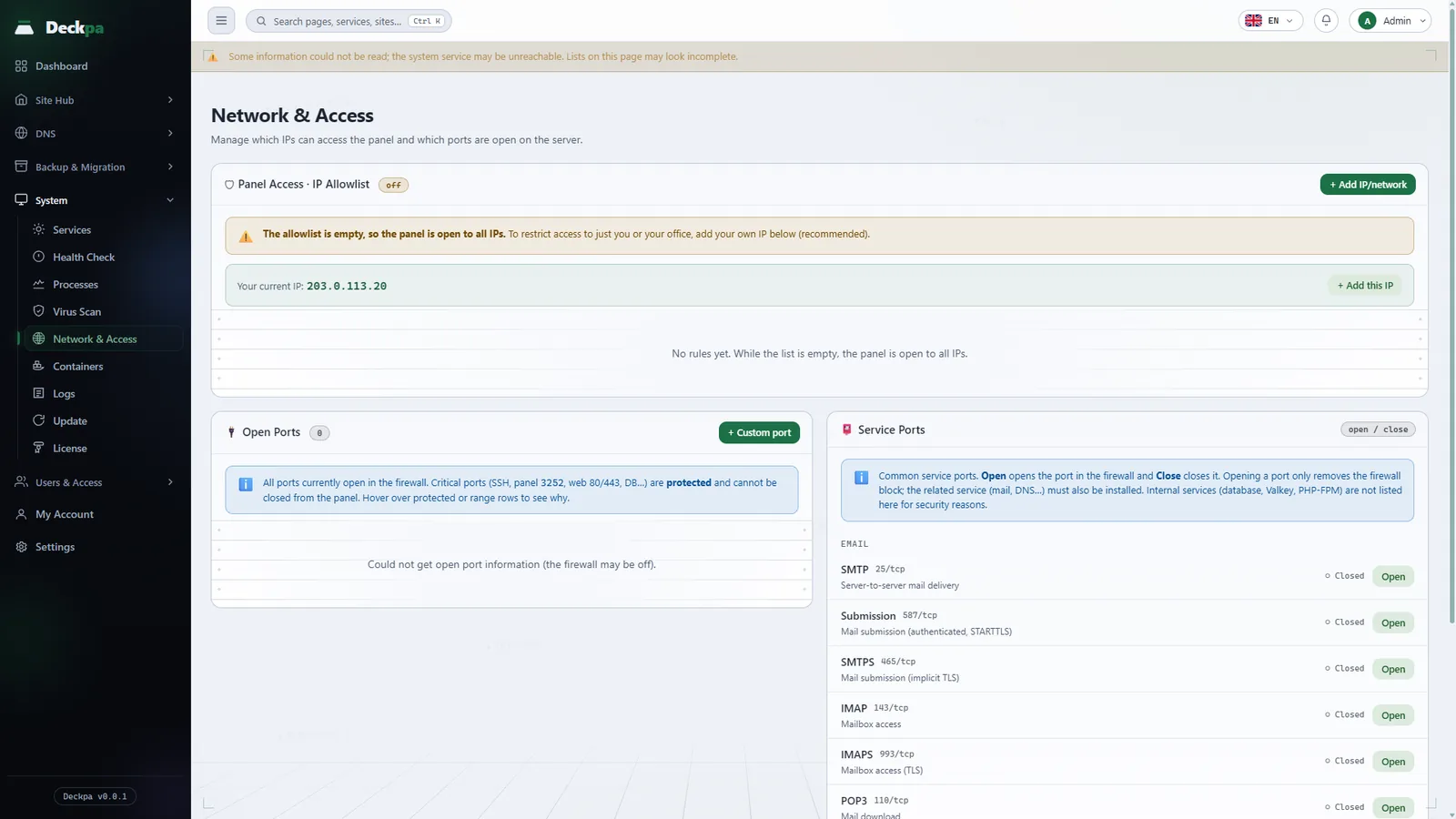
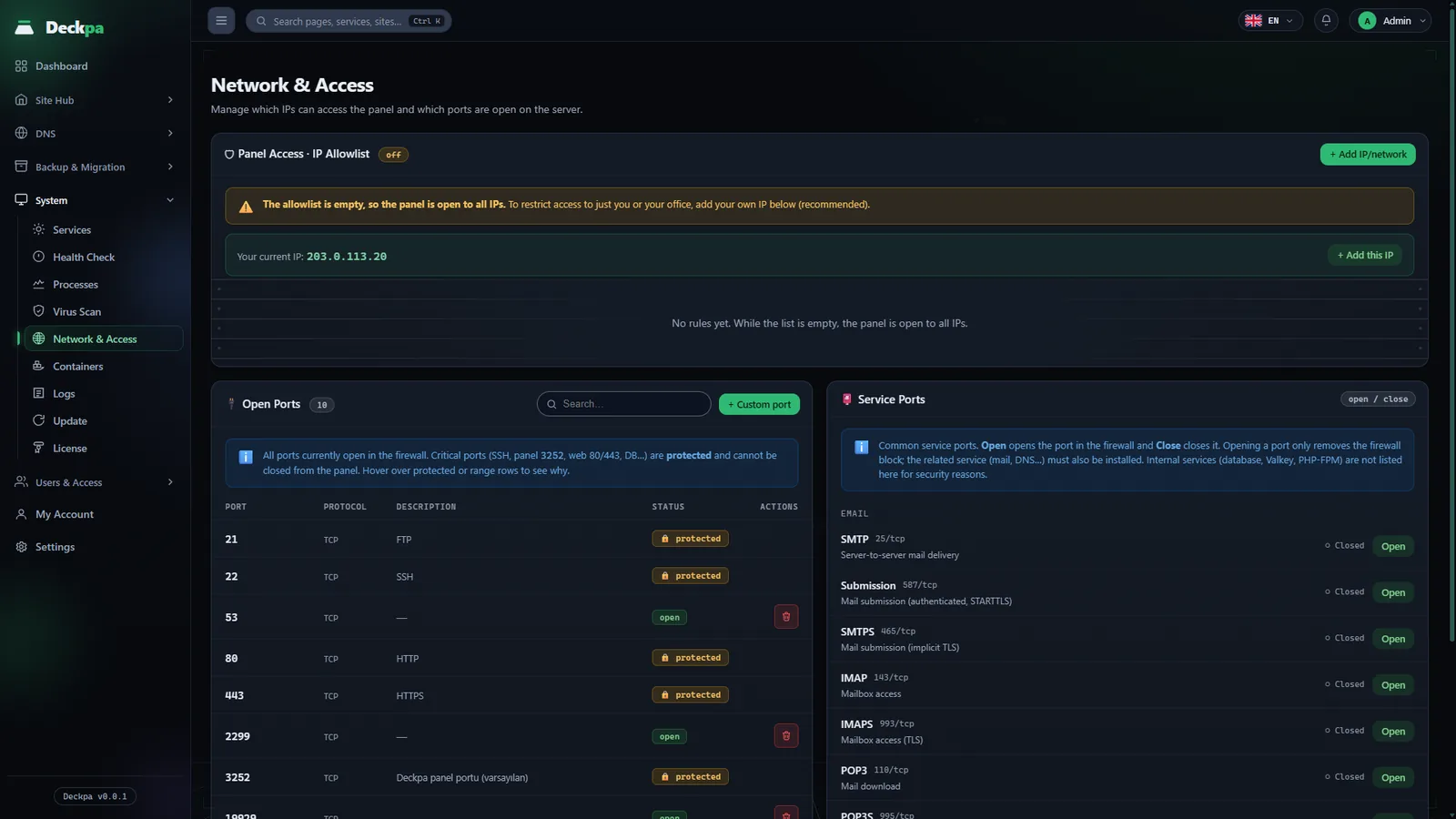
The Network & Access page manages two things: which IP addresses can reach the panel, and which ports are open in the server's firewall (firewalld). The page is under System → Network & Access and is available to administrators only. It has three sections: Panel Access · IP Allowlist, Open Ports and Service Ports.
Changes on this page take effect immediately; there is no save step. The port state is read directly from the firewall, so the list you see on this page is the server's real state at that moment. If the firewall cannot be reached, the page says so and tells you the firewall may be off.
Panel access: the IP allowlist
The allowlist makes sure that only certain IP addresses and networks can reach the panel. The list is empty by default, and while it is empty the panel is open to all IP addresses; the list is optional. As soon as you add at least one entry, the panel can be reached only from the networks on the list; every other address gets an "Access denied." response without even reaching the sign-in page. The badge in the heading shows the state of the list and the number of entries.
- Add this IP — "Your current IP" is written at the top of the page. If this address is not on the list, you add it with one click using the button next to it. If it is on the list, an Already allowed badge appears.
- Add IP/network — in the IP or network field you enter a single address (
203.0.113.4) or a network range (192.168.1.0/24); you can also add an optional note. If you enter a single address,/32is added automatically for IPv4 and/128for IPv6. - Deleting — the trash icon at the end of a row removes the entry after asking for confirmation.
The allowlist restricts only access to the panel. It does not affect your sites' visitors or FTP connections.
deckpa clear-allowlist as root; the list is cleared and the panel is open to everyone again.
Open ports
The Open Ports table lists all ports that are currently open in the firewall: port, protocol (TCP or UDP), description and status. The status column reads open or protected.
Protected ports can be neither opened nor closed from the panel; if they were closed, you would lose access or an internal service would be exposed. Protected ports include SSH (and the new port if you changed it in Settings), the panel's own port, 80 and 443 for the web, 21 for FTP, and the ports of internal services such as the database that are reached only from this server. The FTP passive data ports are listed as a range and cannot be closed one by one. If you hover over a protected row, you see the reason.
To open a port for your own application, press the Custom port button and enter:
- Port — a number between 1 and 65535.
- Protocol — TCP or UDP.
- Description (optional) — write what you are opening the port for (up to 60 characters). The description appears in the list, and its first letter is capitalized automatically. Because the firewall cannot hold a description, this note is stored in the panel.
You close a port you opened with the icon at the end of its row; the panel asks for confirmation before closing it. Opening a port only removes the firewall block. You still need to run the application that listens on that port, and if your hosting provider applies a separate firewall at the network level, you may need to allow the port there as well.
Service ports
The Service Ports section offers commonly used ports in a ready-made list, so you do not have to type the number by hand. The list has two groups: Email (25, 465, 587, 110, 995, 143, 993) and Network (the DNS port 53, TCP and UDP). Each row has an Open or Close button and a state (Open or Closed); the state is read from the firewall. Open and Close ask for confirmation.
Opening a port only removes the firewall block; the related service must also be installed. Deckpa does not include a mail server, so open the email ports only for a service you install yourself. Internal services such as the database, Valkey and PHP are not in this list for security reasons.
The panel's own protection rules
In addition to the port list in the firewall, two separate nftables rules come with the installation. They are not managed on the Network & Access page, but Health Check measures that they are working.
- Panel port connection limit — the panel port accepts at most 90 new connections per minute from each IP address; connections above that are dropped. The limit is per address, so many users connecting at the same time do not use up each other's allowance. If you change the panel port, the rule must cover the new port; if the rule stays on the old port, Health Check reports it as a warning.
- Access limit from user accounts — the user accounts that your sites run under cannot connect outward on port 25 (SMTP), and cannot reach the ports of the panel, the OpenLiteSpeed administration interface and the PowerDNS API over localhost. Access to the server metadata address of cloud providers is also blocked. The MariaDB port is open on purpose; an account can connect only to its own database.
Common situations
- "This rule does not cover your current IP address" — the entry you are trying to add leaves out the address you are connected from. Add your own address or network first, then the others.
- You connect from home or an office and your IP address changes — instead of a single address, you can add the network range your provider gives you, or you can leave the allowlist unused. If you do not have a fixed address, the list can lock you out.
- You opened a port but cannot connect — check that an application is listening on that port and that your hosting provider's network rules let the port through. An open port does nothing without an application listening on it.
- A port cannot be closed or opened — the port is protected. To change the panel port or the SSH port, use the Settings page; the new port becomes protected as well.
- Your own address was blocked by Fail2ban — this happens after repeated wrong attempts at the panel sign-in or SSH. The Fail2ban tab on the Logs page has a Remove block button; if you cannot reach the panel either, run
deckpa unbanon the server.