FTP accounts
Create a separate FTP account for each site; an account can reach only that site's directory.
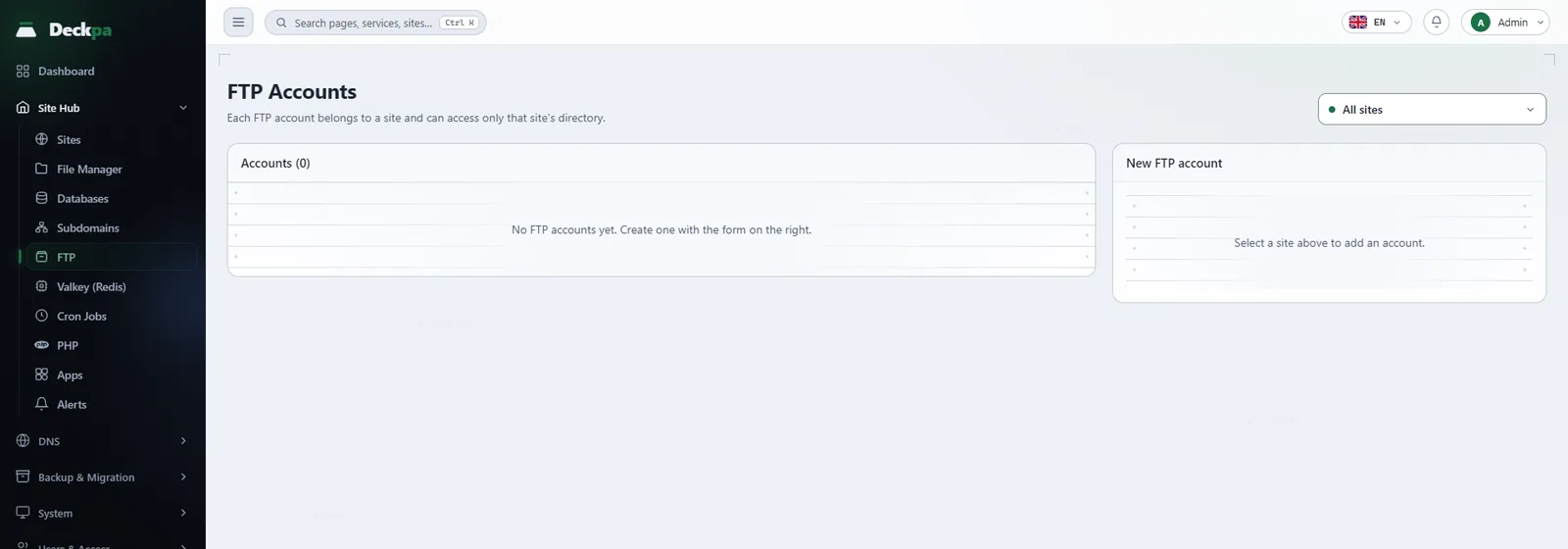
How FTP accounts work
You manage FTP accounts from Site Hub → FTP or from a site's FTP tab (see Site Hub). Each FTP account belongs to a site and can access only that site's directory. Accounts are not real Linux users on the server; they are kept in the FTP server's (pure-ftpd) own account records, and a signed-in user is locked into the site's home directory: it cannot go up to a parent folder.
Files uploaded over FTP are owned by the site's Linux user, so the web server reads them without problems. An account created for a subdomain is narrower: it is locked into that subdomain's document root only, and cannot see the main site's files or other subdomains.
There is no SFTP or SSH access for site accounts. To transfer files, use FTP or the panel's File Manager.
Creating an account
- Pick the site in the site selector at the top of the page. A site must be selected before you can add an account.
- In the New FTP account form, type a name in the Username field. The site's system user name is added in front of the name automatically; for example, on a site whose system user is
examplecom, typingbackupgives the account nameexamplecom_backup. You can use up to 32 characters including the prefix; the name is converted to lowercase and can contain letters, digits, dots, underscores and hyphens. - If you leave Password empty, the server generates a strong password. If you type your own, it must be at least 12 characters, include at least one letter and one digit, and contain no spaces or control characters.
- Press Create →.
When the server generated the password, it is shown only once in the FTP password window. Save it before you close the window; it cannot be displayed afterward. If you lose it, reset the account's password.
Connecting with an FTP client
Enter these details in your client (FileZilla, WinSCP or any other FTP client):
Host:        203.0.113.10  (the server's IP address, or a domain that points to it)
Port:        21
Username:    examplecom_backup
Password:    the password you set for the account
Transfer:    passive mode
The server protects the FTP connection with TLS when the client asks for it. The certificate created at installation is self-signed, so your client may show a certificate warning on the first connection. If the client does not ask for TLS, plain FTP works too, which is why you should select "explicit FTP over TLS" in your client.
For passive mode, TCP ports 30000 to 35000 and port 21 must be open on the server; the Deckpa installation opens these ports in the server's firewall. If your hosting provider has a separate firewall, you also need to open these ports there.
Password, deleting and suspension
- Change password — this button on the account row opens the Reset password window. If you leave the password empty, the server generates a new one and shows it once in the New FTP password window. The password rules are the same as when creating an account.
- Deleting — deleting an account does not touch the files; the confirmation window says that its files are kept. Open FTP sessions of a deleted account are closed too.
- Suspension — when you suspend a site, cron jobs and FTP stop, and they resume when the suspension is lifted (see Site Hub).
- Deleting a site — when you delete a site, the FTP accounts linked to it are deleted as well.
Common problems
- Connections stop working after a while — if an IP address makes 10 failed sign-ins within 10 minutes, the server's protection rule blocks that address for 1 hour. Fix the wrong password and wait for the block to end; an administrator can also lift the block. An administrator can see blocked addresses on the Fail2ban tab of the Logs page.
- You sign in but the folder list does not load — the passive mode ports may be closed. Select passive mode in the client and check that ports 30000-35000 are open.
- You have reached your plan's FTP account limit — you have used all the accounts in your plan. Delete an account you no longer use, or ask your administrator to upgrade the plan.
- The panel subscription has expired, so new resources cannot be created — in this state you cannot create new FTP accounts; existing accounts keep working.
- no record — accounts listed under Accounts without a panel record exist on the server, but their panel record could not be written. These names cannot be reused until you delete the accounts; delete the account here and create it again with the same name.
- This username is already in use — an account with that name exists; choose another name.