Subdomains
A subdomain is a separate address definition that shares the main site's Linux user and home directory; you choose its document root.
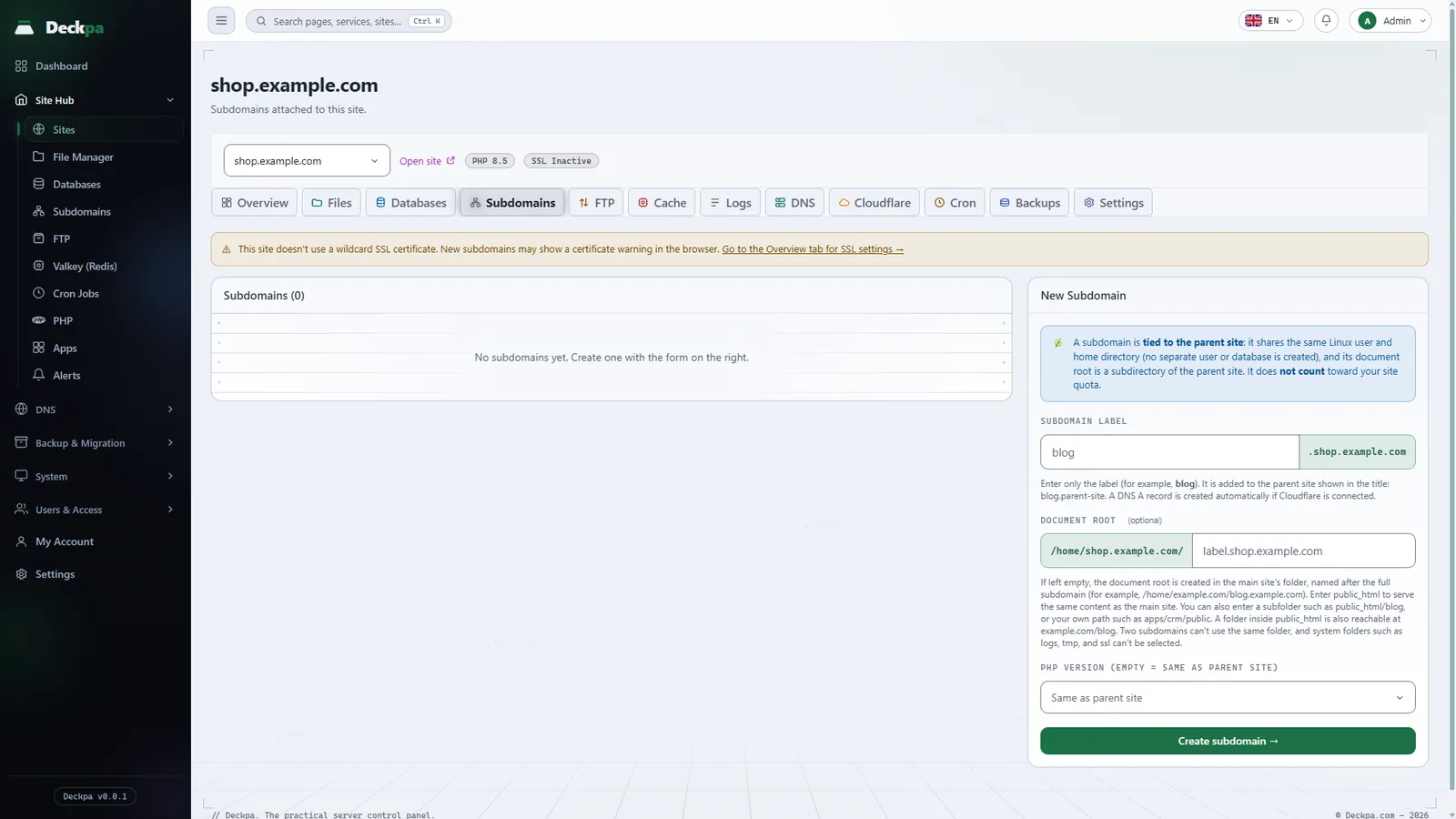
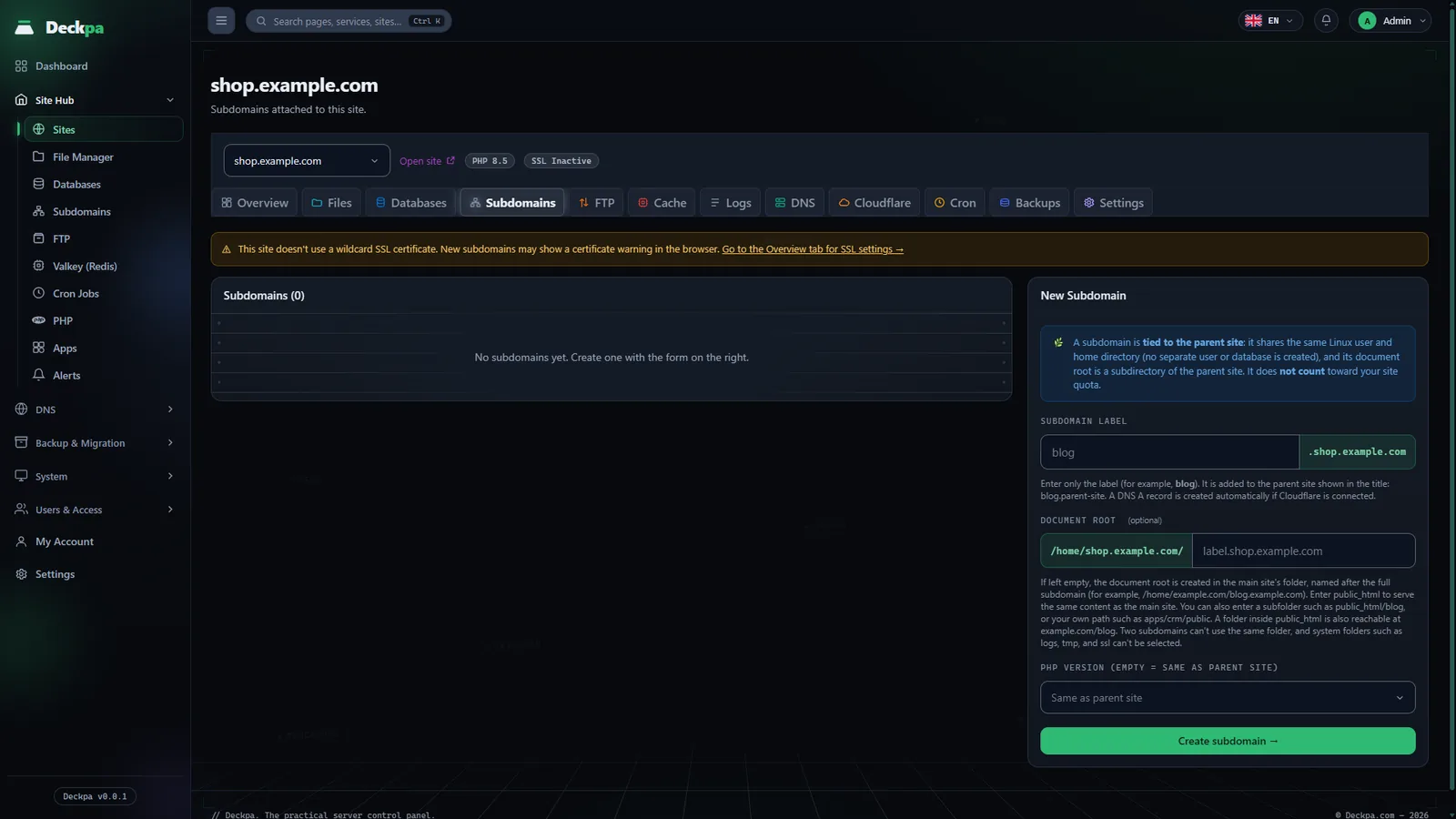
What a subdomain is
You manage subdomains from Site Hub → Subdomains or from a site's Subdomains tab (see Site Hub). The page lists the subdomains of all your sites, and the site selector narrows it to one site. The list shows the Domain, PHP version, Directory and Created columns.
A subdomain is a separate virtual host (vhost) definition tied to the main site. It shares the main site's Linux user and home directory; no separate user or database is created. Its document root is a folder inside the main site's home directory. Subdomains do not count toward your site quota, but your plan can have a separate subdomain limit. You can give a subdomain its own PHP version; if you leave it empty, the main site's version is used.
- A subdomain can be created only under a top-level site; you cannot create a subdomain under another subdomain.
- A subdomain has no Cloudflare DNS zone of its own; it shares the main site's zone. Cache settings are also managed from the main site, so the Cache tab does not appear for subdomains.
- A subdomain can have its own FTP account and cron jobs (see FTP accounts and Cron jobs).
Creating a subdomain
- Pick the main site in the site selector. A site must be selected before you can add a subdomain.
- In the New Subdomain form, type only the label in the Subdomain label field; for example, typing
blogcreatesblog.example.com. - If you like, fill in the PHP version and Document root fields; both can be left empty.
- Press the Create subdomain button.
The label must be a single DNS label: it can contain lowercase letters, digits and hyphens, cannot start or end with a hyphen, and cannot contain a dot (a two-level name such as x.blog cannot be created). The www label is not accepted, because the www address is the main site's own address and already works. For labels that collide with a system or service name, such as mail, the panel shows a confirmation window; if you confirm, it is created.
When creation finishes, the panel writes the subdomain's web server definition and adds an A record for the address to the site's DNS zone, and to Cloudflare as well if it is active there. If the domain's DNS is at another provider, you need to add this record at your provider yourself (see DNS management).
Choosing the document root
The Document root decides which folder the subdomain serves from. The path you type is relative to the main site's home directory; the form shows /home/example.com/ as a prefix in front of it. If you leave the field empty, the document root is created in the main site's home directory, named after the full subdomain.
(empty)                       /home/example.com/blog.example.com
public_html                   /home/example.com/public_html   (same content as the main site)
public_html/blog              /home/example.com/public_html/blog
apps/crm/public               /home/example.com/apps/crm/public
- If you enter
public_html, the subdomain serves the same content as the main site: two domains, one application. This is the only folder that can be shared by several subdomains. - If you give a folder inside
public_html(for examplepublic_html/blog), the content is also reachable atexample.com/blog. - Each part of the path can contain lowercase letters, digits, dots, hyphens and underscores (up to 64 characters). Absolute paths and
..are not accepted. - Two subdomains cannot use the same folder or folders nested inside each other.
backups,logs,subdomains,ssl,tmp,mail,etc,var,cgi-binandperl5are names the system uses; they cannot be chosen as a document root.
DNS, SSL and wildcard
For a new subdomain to open over HTTPS, the main site needs a wildcard certificate (*.example.com). If the main site has a wildcard certificate, the subdomain uses it right away. If it does not, the This site doesn't use a wildcard SSL certificate warning appears above the subdomain list, and the browser may show a certificate warning. The link in the warning takes you to the site's Overview tab. After creating a subdomain, the panel also tries in the background to extend the site to a wildcard certificate; it completes on its own when DNS validation is possible (see SSL certificates).
The Add Wildcard Support action on the site's Overview tab is a separate feature: it routes every undefined *.example.com address to this site. A subdomain with its own record (for example blog.example.com) always takes priority and is not routed by it.
Deleting
When you press the Delete icon on a row, the panel asks for confirmation: the subdomain's DNS (A) record and any subdomains beneath it are deleted too, and the main site is not touched. If the Also delete the site's files (docroot) box in the confirmation window is not ticked, the files in the document root stay where they are.
Even if you tick the box, the panel does not delete some folders and tells you why: if the folder existed before the subdomain was created, is the main site's public_html folder or is inside it, or contains another subdomain's document root, the files are not touched. If an application is installed on the subdomain, take a backup before deleting (see Backup and restore).
Common errors
- A subdomain name is required — the label field is empty. Type only the label, such as
blog. - "www" cannot be added as a subdomain — the
wwwaddress already works together with the main site. - You have reached your plan's subdomain limit — you have used all the subdomains in your plan. Delete one you no longer use, or ask your administrator to upgrade the plan.
- The folder overlaps with another subdomain's document root — two subdomains cannot use the same folder or nested folders. Choose a different folder.
- You cannot create a subdomain under another subdomain; the panel refuses it. Create the subdomain directly under the main site.
- The subdomain was created on the server, but it could not be saved in the panel — add the same subdomain again; the second attempt only completes the missing record.
- The panel subscription has expired, so new resources cannot be created — in this state you cannot create new subdomains; existing ones keep running.
- The address does not open — check that the A record points to this server. The DNS card on the site's Overview tab explains where the domain points and what you need to do.