App installer
WordPress, WooCommerce, Laravel and Joomla install through one wizard; installed apps are updated and removed from a table.
Catalog and requirements
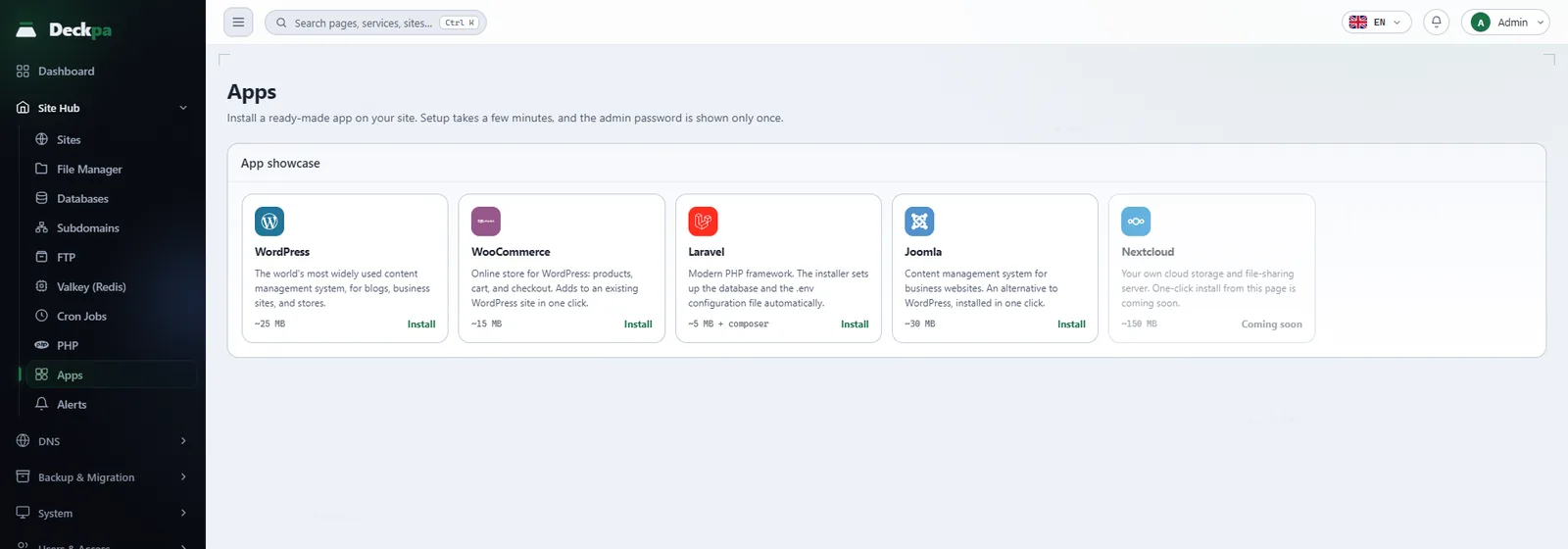
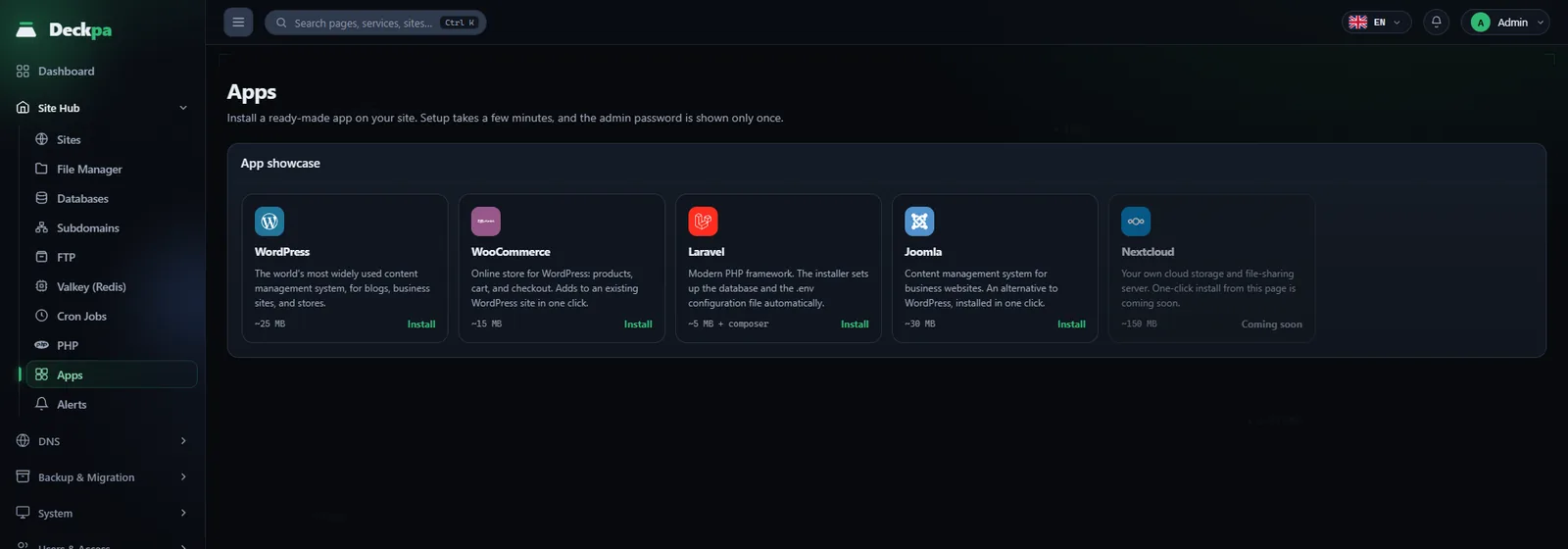
The App showcase on the Site Hub → Apps page shows five recipes. The recipes ship inside the panel, and the wizard runs the same steps for each one: it downloads the files, prepares the database, configures the app and checks the site. This installer is for PHP applications; for applications that bring their own runtime, see Containers.
- WordPress — a content management system. It installs on sites running PHP 8.1 to 8.5. The install language can be de, es, fr or tr; auto uses your panel language.
- WooCommerce — e-commerce on top of WordPress. It does not create a separate site; it requires a WordPress that is already installed at the target, and it installs and activates the plugin. PHP 8.1 to 8.5.
- Laravel — a PHP framework. It downloads packages with Composer and prepares the database and the
.envfile. PHP 8.2 to 8.5. - Joomla — a content management system. It installs the version pinned in the recipe from a verified archive. PHP 8.3 to 8.4.
- Nextcloud — appears in the showcase marked Coming soon and cannot be installed yet.
The menu also has an item named Apps under Backup & Migration; that is not this installer. It is an administrator-only screen that backs up services and containers the panel does not manage.
The install wizard
Pick a card from the showcase and the wizard window opens. You fill in these fields:
- Site: the site to install into. Only sites you can access are listed; if you have no sites, the wizard says so.
- Path (optional): if you leave it empty, the app installs at the site root. If you enter
blog, it installs under/blog. - Install language: auto uses your panel language. For WordPress, language codes are listed as well.
- Admin username and Admin email: the username defaults to
admin; it must be 3 to 60 characters long and start with a letter or a digit. - Site title (optional): if empty, the domain name is used; you can change it later inside the app.
- Database table prefix (optional): if empty, a random prefix is generated. A fixed
wp_prefix is easy to guess, so leaving it empty is safer.
Pressing Install does not start the install right away: first the values you entered are listed in the Review before installing summary. Use Back to correct them or Confirm and install to start. The install runs in the background, and the window shows stages such as Downloading, Extracting the archive, Preparing the database and Configuring.
When it finishes, the window shows the admin username and a randomly generated password. For WordPress and WooCommerce, an Open admin panel link to the app's admin page is shown there too. The password is displayed only once, on this screen; the panel does not store it.
Checks before installing
Before the install starts, the panel checks for conditions that would cause trouble later, and stops without touching anything if one fails:
- PHP version: if the site's PHP version is outside the range the app supports, the install does not start; the error names the site's version and the required range. You can change the version on the PHP page.
- The target folder must be empty: if the target contains other files, the install is refused. The panel's own welcome files (
index.html,.well-known) do not count. The installer never installs over a folder that has content, because same-named files would be overwritten. Pick an empty path or subfolder. - Free disk space: if the partition that holds the target has less than 500 MB free, the install does not start.
- Current version: for WordPress, if the current version information cannot be reached, the install is cancelled; it never falls back to an older version.
- Integrity: the checksum of the downloaded archive is compared with the source; if they do not match, the install stops.
If an install that needs a database fails partway, the panel tries to delete the database and database user it created, so you can try again on the same site.
If a subdomain shares the main site's document root, the apps in that folder are installed and removed from the main site; in that case the error message tells you to do it from the main site.
How updates work
Installed apps are listed in the Installed apps table below the showcase (Domain, App, Version, Path). Each row has an Update and a Remove button. An update does the following, depending on the app:
- WordPress: updates the core, all plugins and all themes.
- WooCommerce: updates only the WooCommerce plugin.
- Laravel: updates dependencies with Composer, then runs
php artisan migrate, which updates the database schema. - Joomla: updating is not supported yet; if you press the button, the panel tells you so. Update Joomla from its own admin screen.
After the update finishes, the panel sends a request to the site and checks that the home page answers with the expected status code, and then the Version column refreshes. If the check fails, the panel tells you that the update was applied but the site did not respond as expected, the files were not rolled back, and you need to check by hand.
Removing an app
The Remove button on a row opens the Remove app confirmation. The files are deleted and this cannot be undone. The files are deleted with the site user's identity, and nothing outside the install folder is touched. The panel's welcome files are not deleted.
For apps that use a database (WordPress, Laravel, Joomla), the confirmation window has an Also delete the database checkbox. If you leave it unticked, the database and its user stay in place; if you tick it, they are deleted, and if deletion fails the panel reports an error. WooCommerce does not create a separate database; removing it deletes only the plugin folder and leaves WordPress untouched.
If you deleted the app outside the panel, with the file manager or FTP, its row stays in the table; use Remove to clear the row.
Common errors
- The install path is occupied: the target already contains other files. Enter an empty path (for example
blog) or clear the folder in the File Manager. - Incompatible with the PHP version: bring the site's PHP version into the app's range, then try again.
- WordPress must be installed on the target site first: for WooCommerce, the target site and path must point to an installed WordPress.
- Not enough free disk space: free up space on the site or the server; at least 500 MB must be free.
- The install is taking longer than expected: the window says this, but the job may continue in the background. After a few minutes, check the Installed apps table and the Logs page. On the first Laravel install, Composer itself is downloaded too, so it can take longer.