Services and processes
Start, stop and update system services, watch server processes live, and see which ones are protected.
The service list
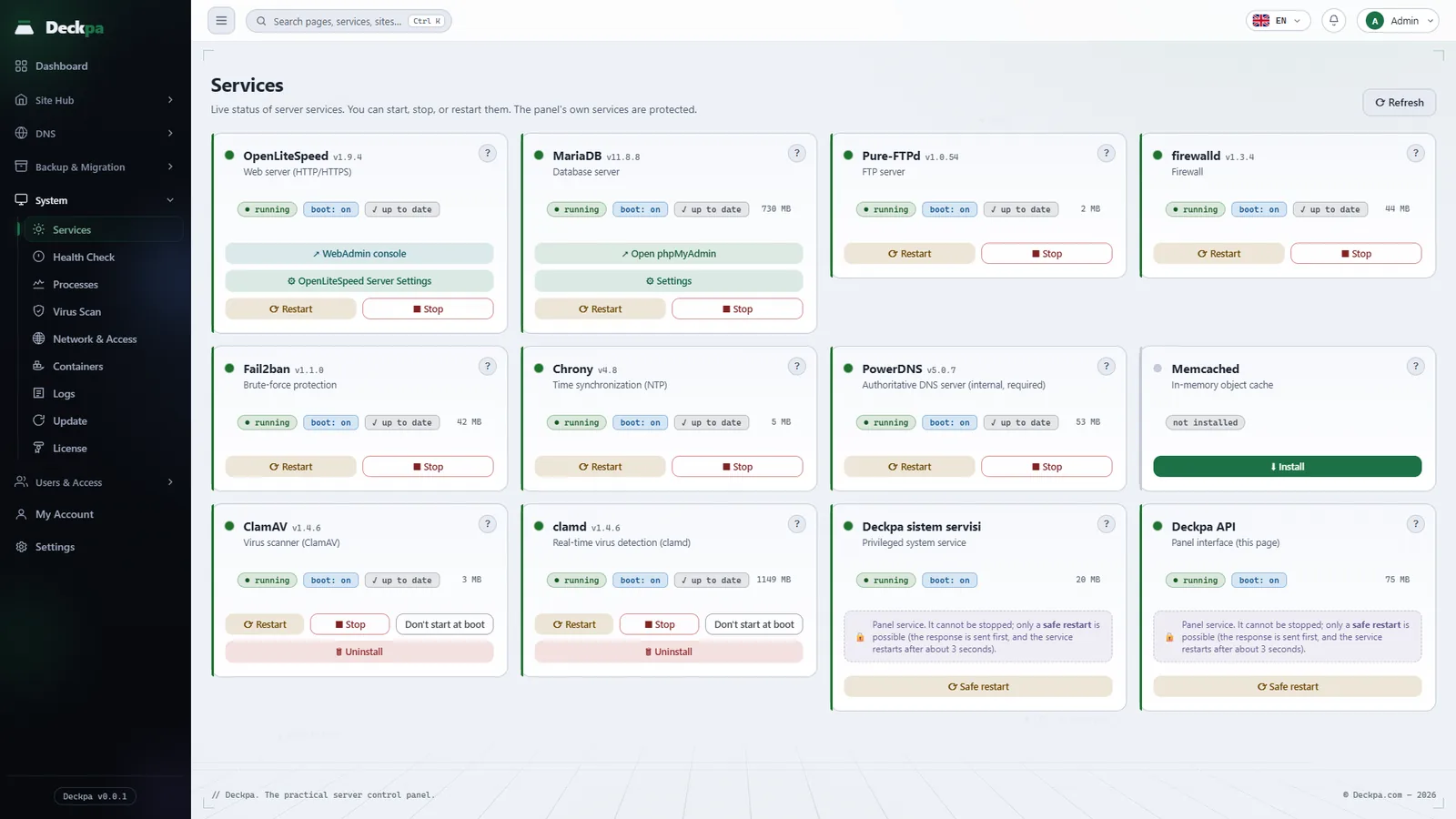
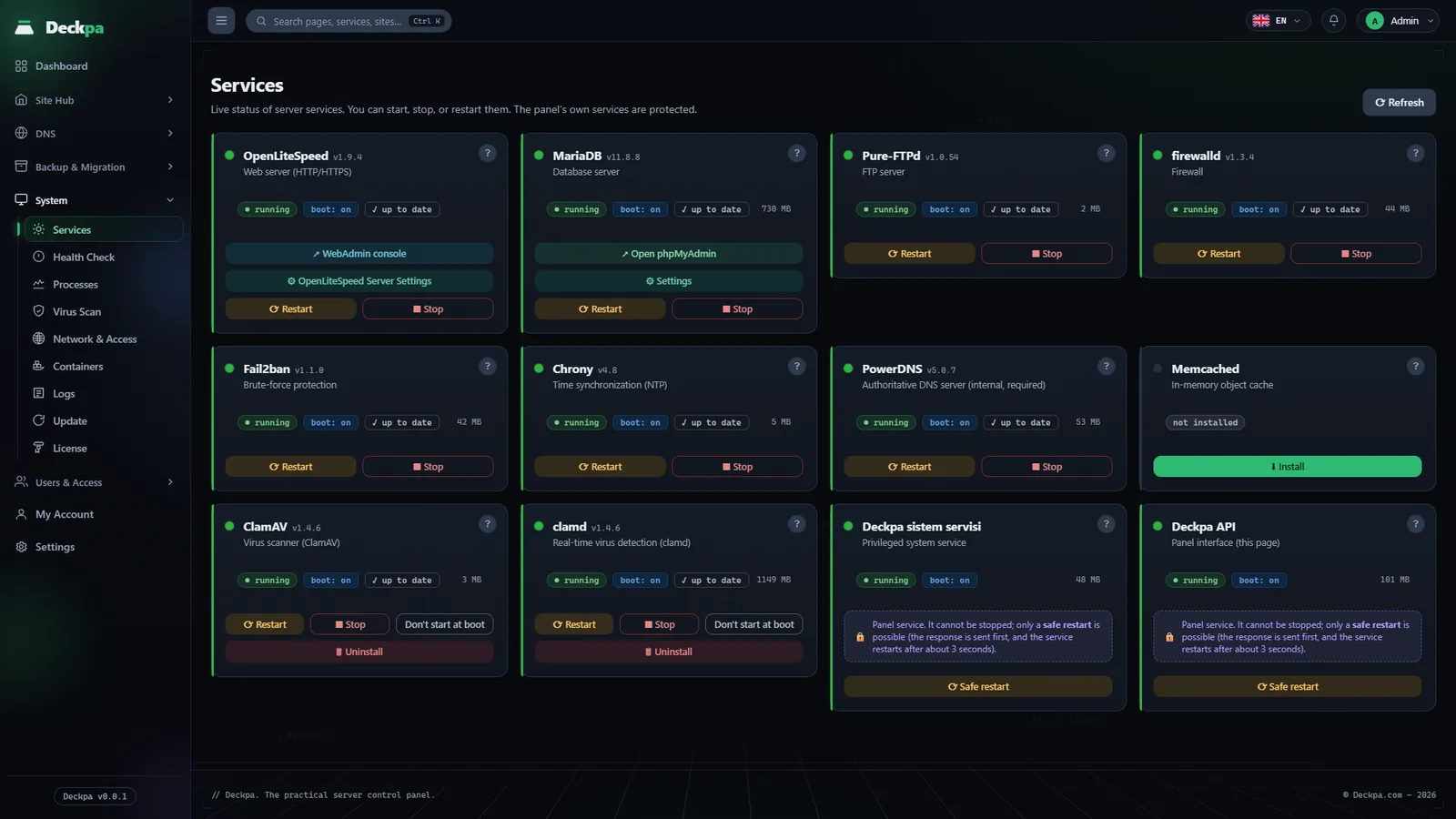
The System → Services page shows the live state of the system services the panel manages. The page is available to administrators only and cannot be granted to any permission group. Each service has a card with its name and installed version, a short description, and these badges:
- State: running, stopped, failed or not installed.
- Start at boot: says whether the service starts on its own when the server restarts (boot: on or boot: off).
- Updates: update available if a package update is pending, otherwise up to date. Hovering over the badge shows when it was last checked.
- Memory: the service's current RAM use, in MB.
The services listed are OpenLiteSpeed (web server), MariaDB (database), Pure-FTPd (FTP), firewalld (firewall), Fail2ban (brute-force protection), Chrony (time synchronization), PowerDNS (internal DNS), Memcached, ClamAV, clamd and the panel's own two services. The ? icon on a card explains what the service does and what is affected if it stops.
Valkey is not in this list. It does not run as a single service but as a separate process for each site; you manage those on the Valkey page (see Valkey cache).
Starting, stopping, restarting
On the card of an installed service, these buttons appear depending on its state. Most of them open a confirmation window before acting:
- Start — if the service is stopped.
- Restart and Stop — if the service is running. Read the card's ? description before stopping: if the web server stops, no site loads; if the database stops, sites that use a database return errors; if firewalld is turned off, the server is left unprotected.
- Don't start at boot and Start at boot — shown only for services that can be installed and removed (Memcached, ClamAV, clamd). This setting affects only the next boot; if the service is running now, it does not stop.
- Safe restart — for the panel's own services, Deckpa sistem servisi and Deckpa API (these are the names the panel shows). These services cannot be stopped from the panel, because stopping them would shut the panel down. When you press the button, the response reaches you first and the service restarts after about 3 seconds. While the API restarts, the page does not respond for a few seconds; refresh it afterwards.
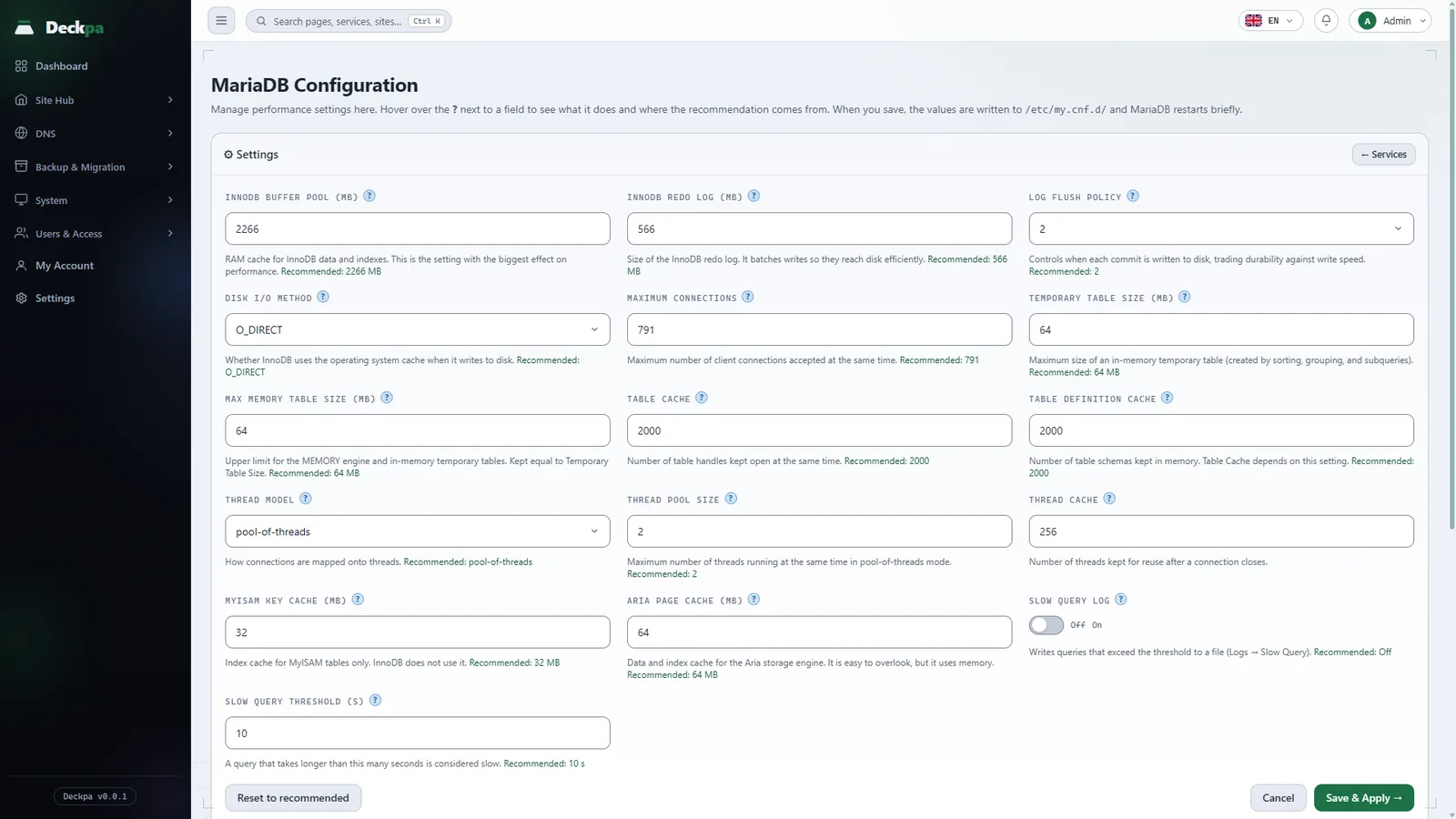
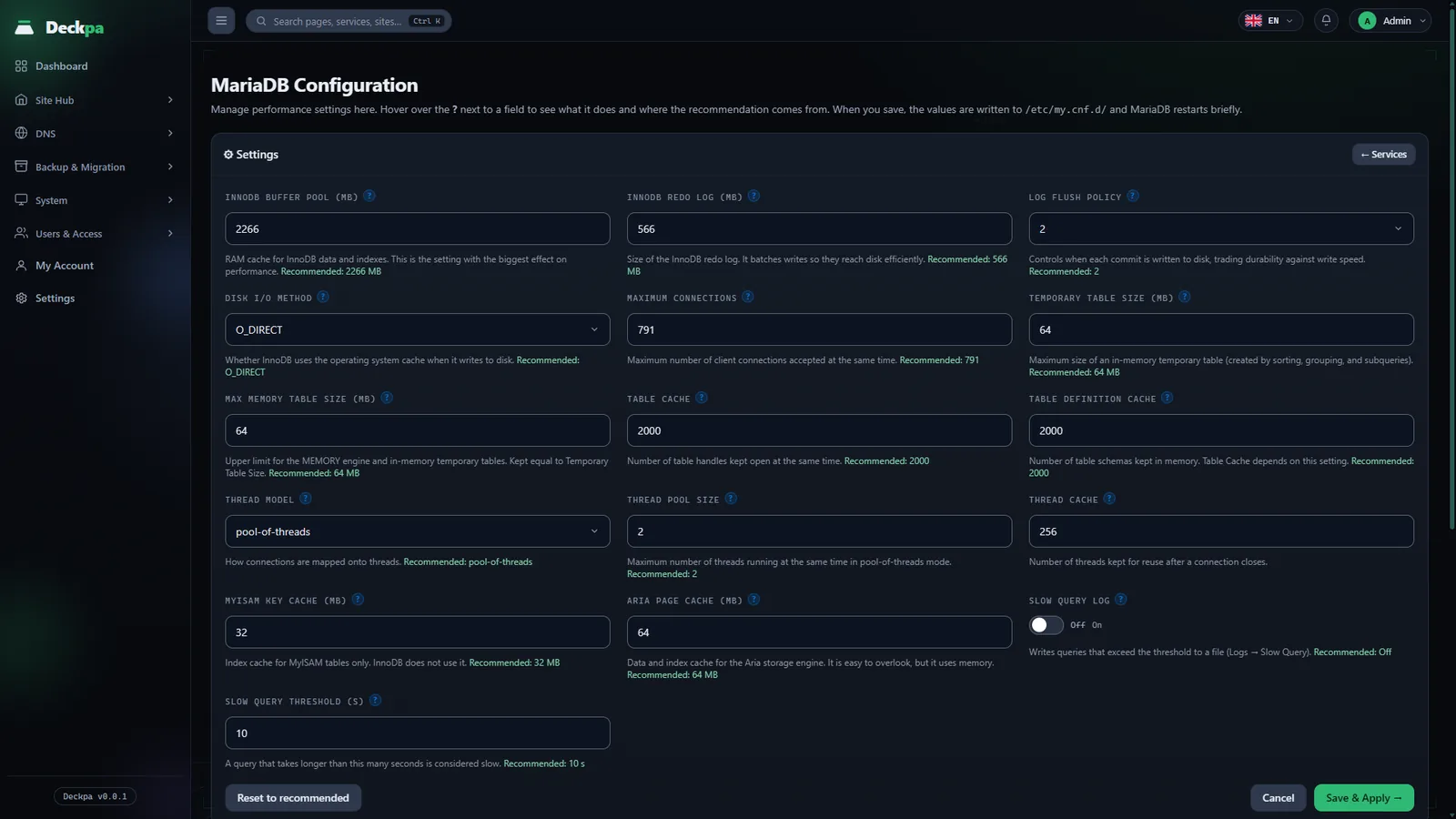
PowerDNS is a required component: it can be started, stopped and restarted, but not removed. The OpenLiteSpeed card also has WebAdmin console and OpenLiteSpeed Server Settings links, and the MariaDB card has Open phpMyAdmin and Settings (Database Tuning) links.
Updating services
So that service versions do not move without control, the panel keeps an approved version for OpenLiteSpeed, MariaDB, PowerDNS and Pure-FTPd. If the installed version differs from the approved version, the card shows an update available badge and an Update button, with the target version on the button. For other services such as Fail2ban, firewalld and Chrony, the panel checks the package repository in the background every 6 hours and shows the same button when an update is pending. If no check has run yet, the button stays visible rather than claiming the service is up to date.
Update moves the service to the latest approved version with the package manager and restarts it briefly. The confirmation window says so. When OpenLiteSpeed is updated, the web server restarts and sites do not respond for a few seconds; leave it for a low-traffic hour. While the update runs, the button reads Updating….
Installing optional services
Memcached, ClamAV and clamd are not on the server by default; you install them with the Install button on their cards. The install can take a few minutes because it downloads packages and writes secure default settings; the button reads Installing in the meantime. No install opens a port to the outside.
- Memcached: installed with password protection; the connection details open with the Connection info button on the card (see Valkey cache). Installing the service does not install the PHP client extension.
- ClamAV: the signature update service. Installing it alone does not touch any files; scanning and quarantine behavior is managed on the Virus Scan page.
- clamd: scans PHP files right after they are written. Installing it alone does not turn on monitoring; the switch is on the Virus Scan page and requires at least 1 GB of free RAM.
Uninstall stops the service and removes the package. It does not delete your data (for example a database), and if you install it again later, it picks up where you left off. Before you remove Memcached, remove the Memcached extension in PHP; otherwise sites that use the object cache may return errors.
Processes
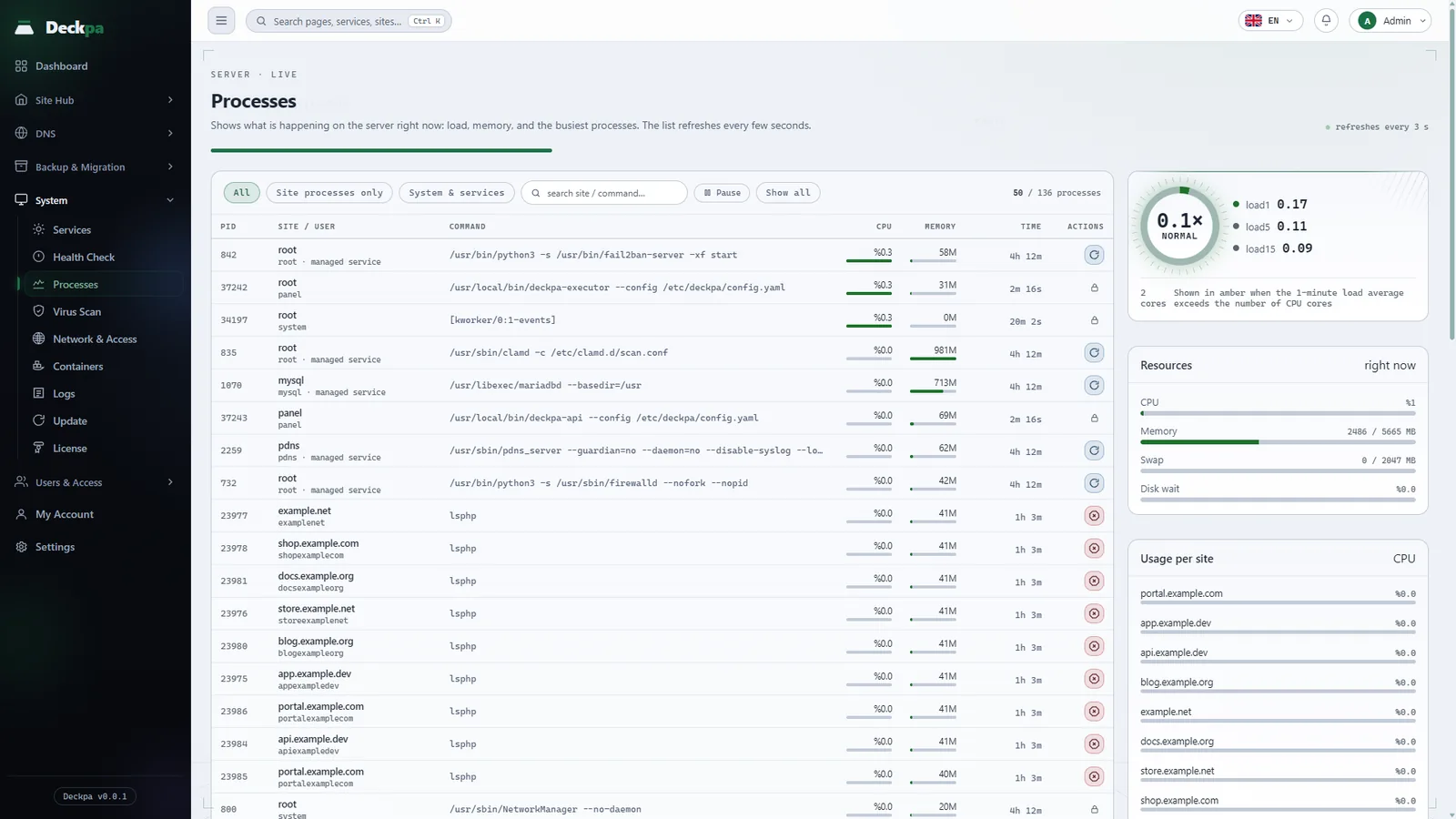
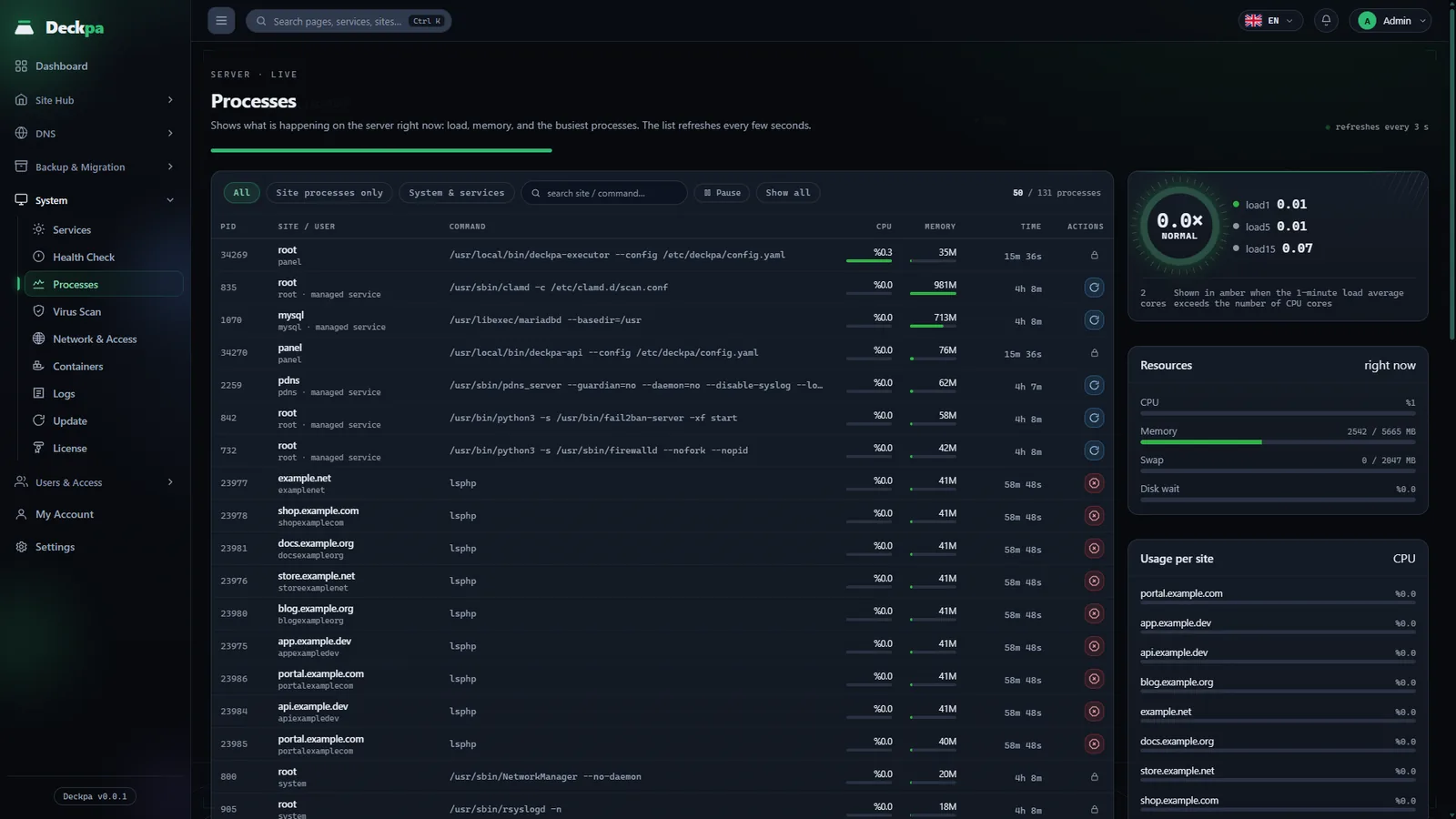
The System → Processes page shows what is happening on the server right now. The page is available to administrators only and refreshes every 3 seconds; use Pause to stop the refresh and Resume to continue. If the measurement service cannot be reached, the page says Could not read the process list; this does not mean nothing is running on the server, only that no measurement could be taken at that moment.
- Server load: Load average, the number of cores, Disk wait, Memory and Swap. The state is shown as Normal, Busy or Overloaded. The value turns amber when the 1-minute load average exceeds the number of CPU cores.
- Usage per site: the sites that use the most resources are ranked, and the rest are grouped as N other sites. When the server slows down, this is where you see which site is using resources.
- Busiest processes: by default the top 50 processes by CPU use. Columns: PID, Site / user, Command, CPU, Memory, Time. Processes that have used high CPU for a long time get a high for a long time flag; they may be stuck.
To narrow the list, use the All, Site processes only and System & services options, the Site filter and the search box (search site / command…). Show all lists every process on the server; because the list is long, the refresh interval goes from 3 to 15 seconds. Back to top 50 returns to the earlier view.
You can end a site's process with the Stop button. This sends the process a shutdown request, so it can finish its work and exit. If it does not respond, it keeps running. Before stopping a process, the panel checks that its number still belongs to the process you selected; if the number was handed to another process in the meantime, the action is refused and you are asked to refresh the list.
Processes that do not belong to a site account are marked protected and cannot be stopped:
- init: the system's first process. Stopping it would shut down the server.
- panel: the panel's own processes. If you stop them, the panel goes offline and you cannot restart it from the interface.
- service: processes that belong to a managed service, and the per-site Valkey instances. The right action for these is to restart, not stop; use the Services page.
- system: processes that belong to the operating system and are not site processes.
When a service will not start
First look at the card's state badge: failed means the service tried to start and could not. The reason is written in the system journal of the service you pick on the Service tab of the Logs page. You can reach the same records on the server as root; for the panel's own services:
systemctl status lshttpd.service
journalctl -u deckpa-api -u deckpa-executor -f
The first command shows the unit state of OpenLiteSpeed, and the second shows the live log of the panel's two services. If the start button returns an error, copy the message as it is and look at the related check on the Health Check page.