Site Hub
Everything for one site is gathered in 12 tabs: files, databases, DNS, backups and more.
How you get into a site
The Site Hub group in the sidebar contains Sites, File Manager, Databases, Subdomains, FTP, Cron Jobs, PHP, Apps, Alerts and the Valkey cache page. Of these, File Manager, Databases, Subdomains, FTP and Cron Jobs are pages that cover all your sites; you pick a site with the site selector at the top. To do the same work from inside a single site, use the Sites page.
The Sites page shows each site as a card. The card shows the site's status (Ready, Needs attention or Error); you can search by domain with the search box and filter by SSL or error status. The card's Manage button opens the site's Site Hub in a window. You can open this window as a full page, refresh it, center it, enlarge it or close it, and you can resize it by dragging. The same screen also opens as a full page, and the content is identical to the window.
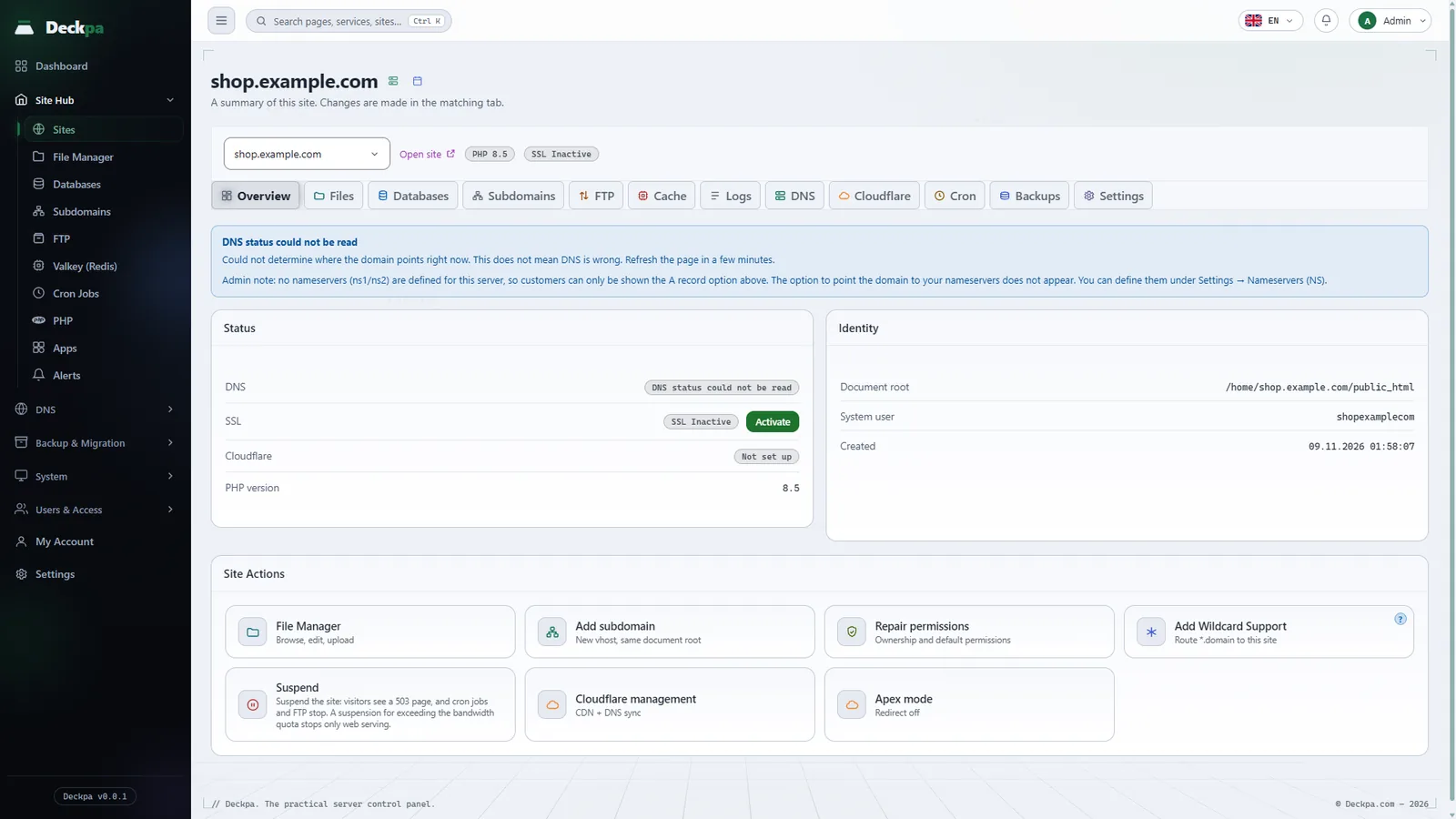
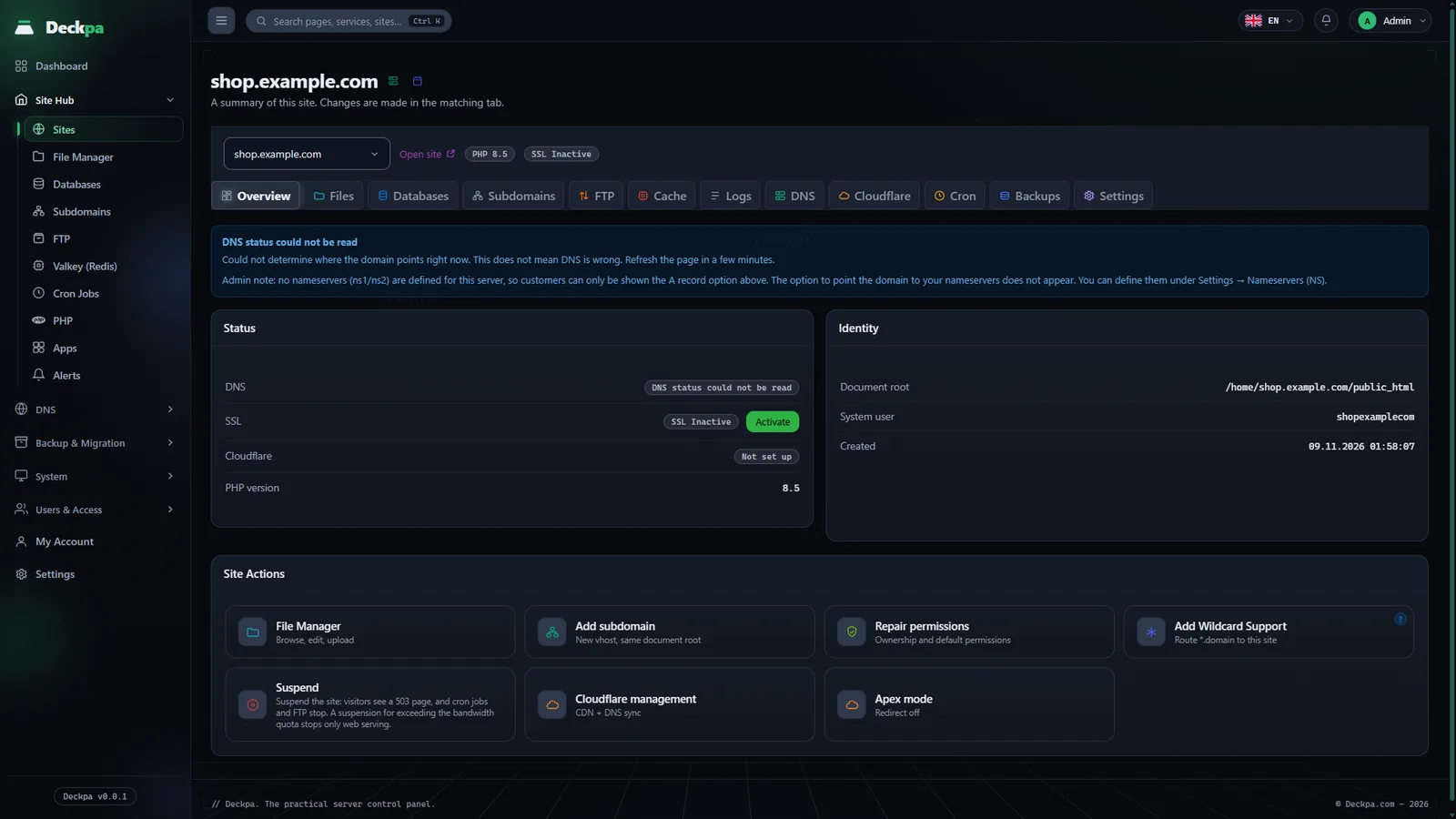
In the strip at the top of the screen you see the site's domain (a Switch site list if you have several sites), the Open site link, the PHP version and the SSL status. When you switch sites, the open tab stays the same: for example, if you are on the FTP tab and pick another site, that site's FTP tab opens. This saves time when you do the same job on several sites in turn.
The Overview tab: status and quick actions
The first tab is the site's summary; you make changes in the matching tabs. It has three parts:
- Status — the SSL status (SSL Active or SSL Inactive, with Activate and Reissue buttons), the Cloudflare status (such as Behind Cloudflare or Not set up) and the PHP version. If SSL is waiting for DNS, Waiting on DNS appears and the panel retries on its own once an hour (see SSL certificates).
- DNS card — explains whether the domain reaches this server and who holds its DNS records: delegated to the panel's nameservers, connected through Cloudflare, or managed outside the panel are shown as separate states. If the domain does not reach this server, the card lists the A records or the nameservers you need to enter at your domain provider (see DNS management).
- Identity — the Document root, the System user, the Created date and, for subdomains, the Parent domain. Database and FTP names start with the system user name. The DNS check (intoDNS) and
Whois (IANA)links go to external sites.
The Site Actions section holds the frequently used actions:
- Shortcuts to the File Manager and Cloudflare tabs; Add subdomain opens a new vhost.
- Repair permissions — fixes ownership and the default permissions.
- Apex mode — you choose the site's primary address with or without
www; the other address redirects to it with a 301. If you choose No redirect, both addresses open separately. - Add Wildcard Support — routes every undefined
*.example.comaddress to this site; subdomains with their own record take priority. - Suspend — visitors see a 503 page, and cron jobs and FTP stop. A suspension for exceeding the bandwidth quota stops only web serving. The reason (Manual suspension, Abuse, Payment failed, Account expired, Bandwidth quota exceeded) is recorded; Lift Suspension brings the site back online.
Daily work: files, databases, subdomains, FTP, cache, logs
- Files — browse, edit and upload the site's files (see File Manager).
- Databases — the databases and users linked to the site, with one-click phpMyAdmin sign-in (see Databases and phpMyAdmin).
- Subdomains — lists the subdomains linked to the site and creates new ones (see Subdomains).
- FTP — FTP accounts for the site (see FTP accounts).
- Cache — the site's own Valkey cache. Each site has its own cache process, its own unix socket and its own memory limit; there is no password or key prefix, and access is controlled by the socket's file permissions. The Turn cache on, Turn cache off, Manage keys and Connection details buttons are on this tab. The tab does not appear for subdomains; their settings are managed from the main site.
- Logs — the site's web server logs, on the Access and Error tabs. The Error tab also includes PHP errors and warnings. To keep the page fast, only a limited number of the latest records is shown.
Network: DNS and Cloudflare
- DNS — the site's DNS records. You can add and edit records of type
A,AAAA,CNAME,MX,TXT,SRV,CAAandNS. If Cloudflare is connected, the same records are updated there as well; the Refresh from Cloudflare and Sync buttons bring the two sides into line. If DNS authority is at another provider, changes here do not go live; the DNS card on the Overview tab tells you so. - Cloudflare — the site's Cloudflare setup. It has five sub-tabs: Setup, Cache, Security, Traffic and Email. On the Cache sub-tab you purge the Cloudflare cache either completely or for up to 30 addresses. The Email sub-tab prepares the DNS records your email provider needs; the panel does not include an email server, it only creates DNS records.
Automation and settings: Cron, Backups, Settings
- Cron — the site's scheduled jobs (see Cron jobs).
- Backups — the site's backup schedule and Backup history. The server-wide retention period and the Google Drive connection are not on this tab; they are in account settings, and the Go to account settings link on the tab takes you there (see Backup and restore).
- Settings — you change the site's PHP version, limits and behavior settings. When the change is saved, PHP is restarted automatically (see PHP version and settings).
Tips for moving between tabs
- The 12 tabs are arranged in this order: Overview, Files, Databases, Subdomains, FTP, Cache, Logs, DNS, Cloudflare, Cron, Backups and Settings. Daily work comes first, network settings are in the middle, and automation and administration are near the end.
- When the screen is narrow, tabs that do not fit are collected in a More menu.
- A site has no separate SSL tab; SSL actions are on the Overview tab.
- If Virus Scan reports a finding on the site, a warning appears on the Overview tab. The server administrator quarantines or reviews files flagged as malicious; if code was injected into an application's core files, restoring from a backup is recommended.
- For the first setup of a site, see Adding a site.