The panel does not run as root.
The panel runs as an unprivileged user. A separate system service does the few jobs that need root, and only from a fixed list of commands. In other words, the panel cannot change the system directly. Every change goes through a command on a fixed list and is recorded.
Panel interface
The session cookie is HttpOnly, Secure and SameSite=Strict. Form actions carry a CSRF token.
Panel
Checks permissions and writes the action to the audit log. It cannot change the system directly.
fixed command list
System service
Runs only the commands on the list. Verifies the identity of the connecting process through the kernel.
You set the access and the level of protection
The settings below live on the matching page in the panel. You do not need to sign in to the server over SSH.
You decide who can reach the panel
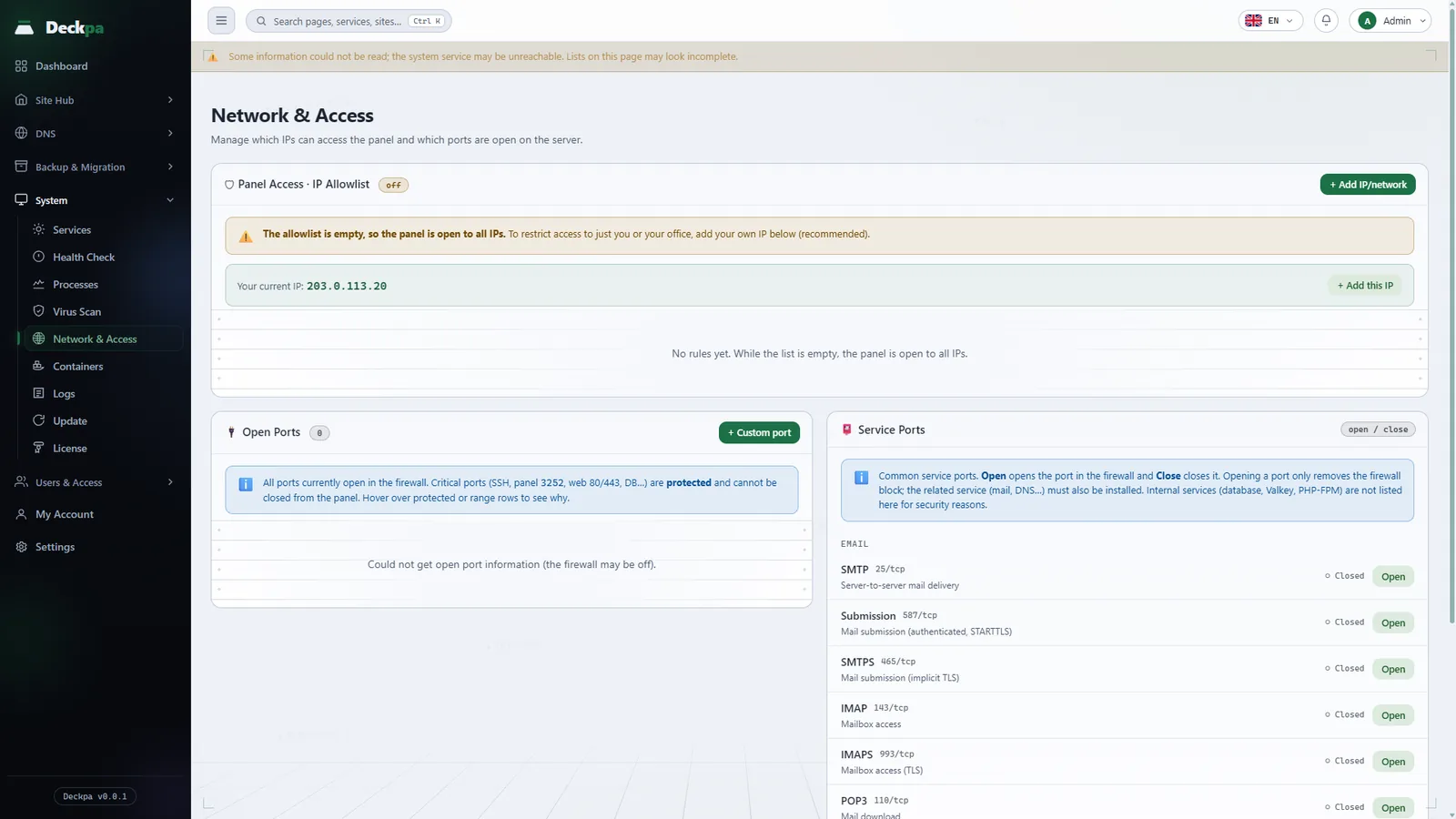
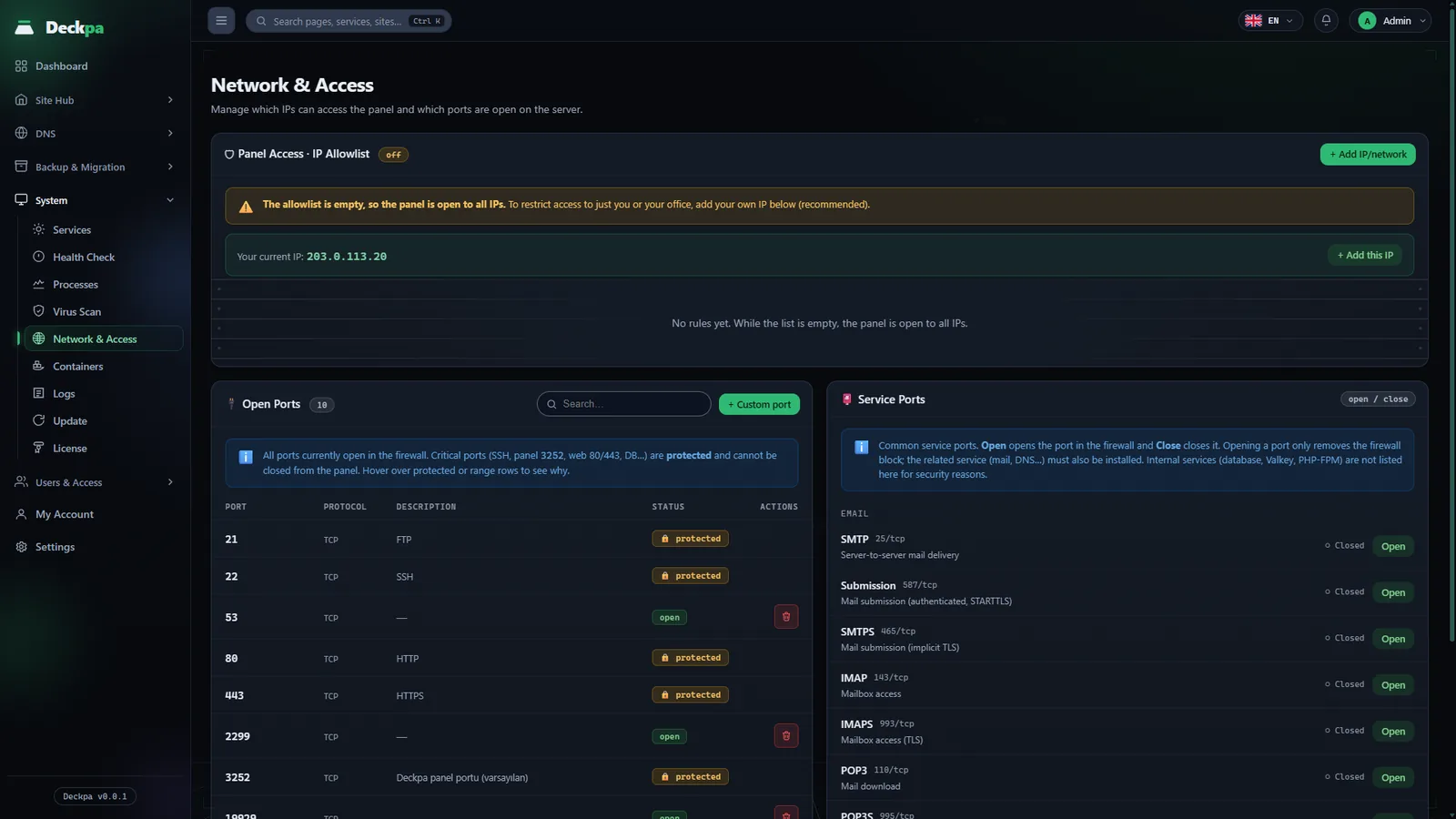
By default the panel is open to every address. Once you add your own IP address to the list, it opens only from the addresses you listed.
- IP allowlistThe panel opens only from the IP addresses you add. While the list is empty it is open to everyone, so add your own address first.
- Firewall portsSee the open ports and turn service ports on or off with one button. SSH, panel, and web ports are protected and cannot be closed from the panel.
- Automatic blockingAfter 3 failed attempts on SSH within 10 minutes, that IP address is blocked for at least 1 day (the time grows on repeat offenses). Each IP address can open at most 90 new connections a minute to the panel port.
Change the panel port and login address
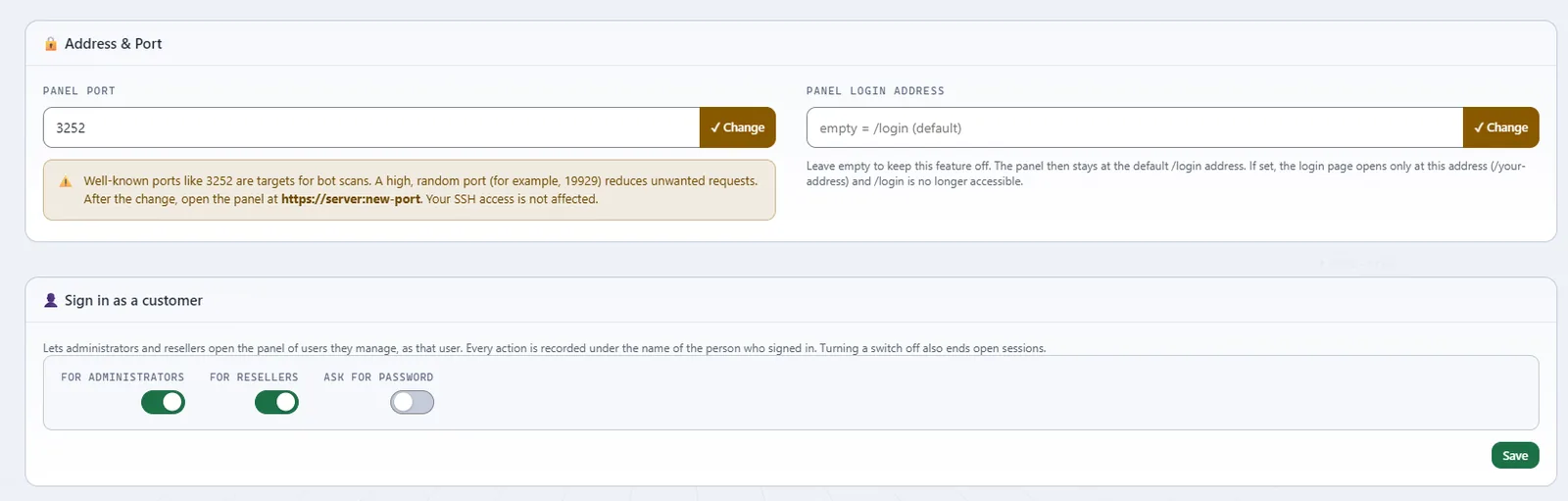
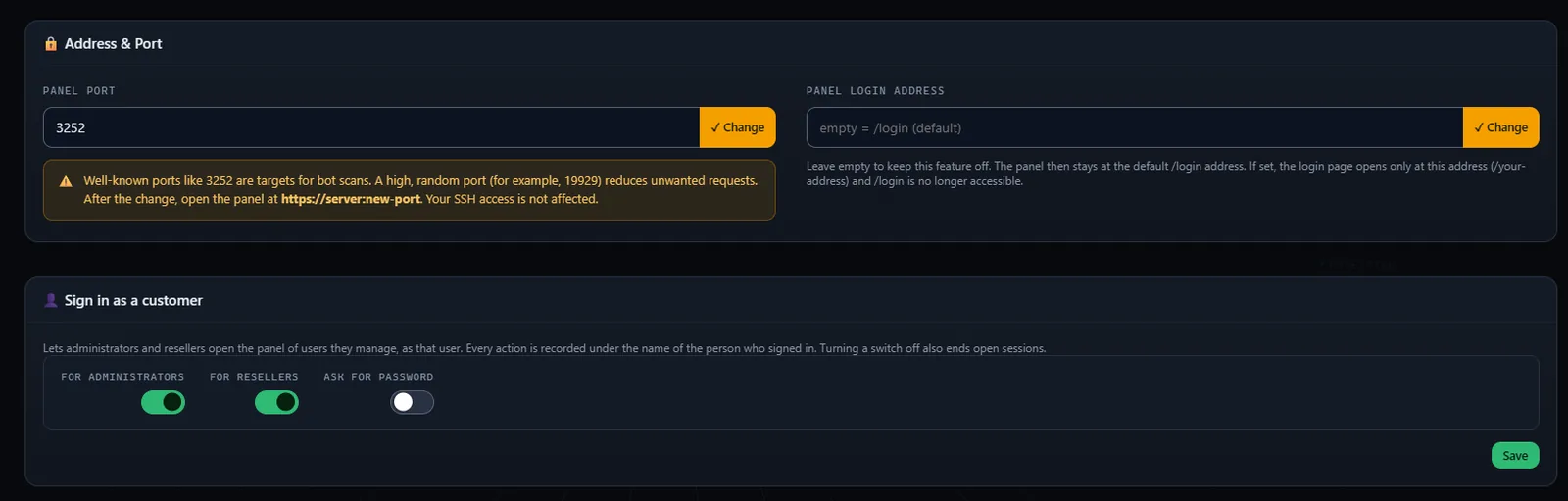
Well-known ports and addresses are the first target of bot scans. You change both from the panel.
- Panel portThe default is 3252. Pick a high, random port. The panel opens the new port in the firewall, closes the old one, and sends you to the new address.
- Your own login addressYou move the sign-in page from /login to an address you choose (for example /admin-x7), and /login closes. This is not access control. It only reduces scan noise.
- If you lose accessIf you cannot reach the panel, you change the port from the server with the deckpa set-port command.
Change the SSH port from the panel
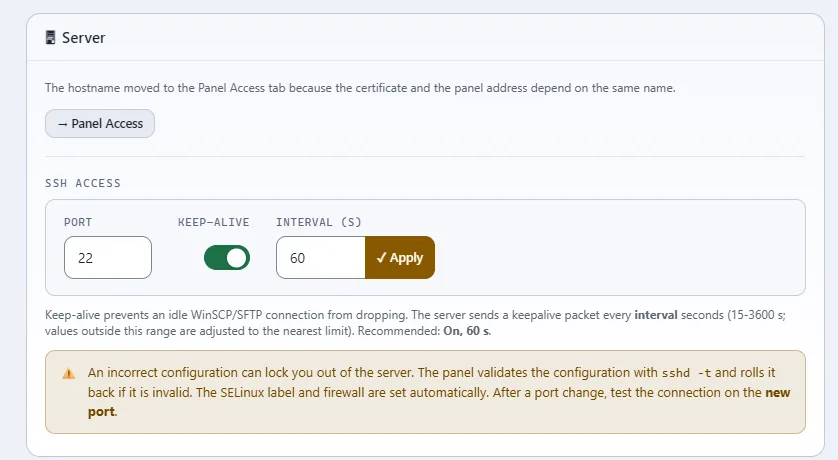
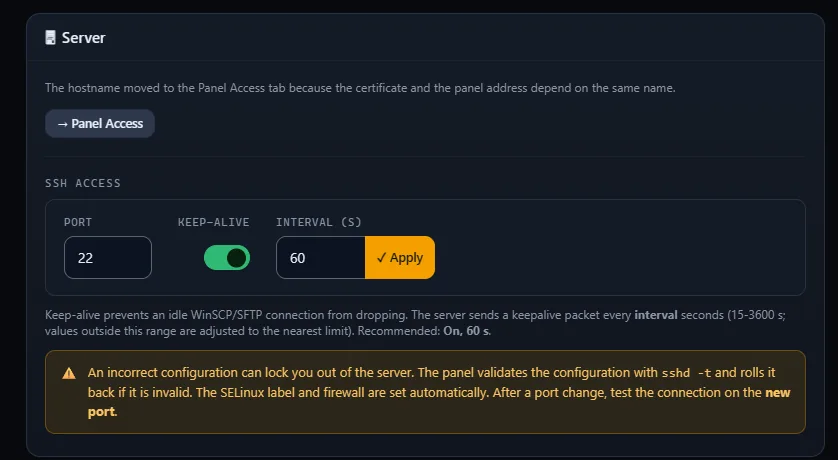
You manage the SSH port and the keep-alive setting on the Settings page. You do not have to edit a file by hand.
- It checks first, then appliesThe panel checks the new configuration with sshd -t. If it is invalid, the panel restores the old one.
- You do not lose accessWhen the port changes, the firewall and SELinux rule adjust automatically. The old port stays open in the firewall until you confirm you can connect on the new one.
- Keep-aliveIdle connections from clients such as WinSCP do not drop. You choose an interval from 15 to 3600 seconds.
Protect your account with two steps
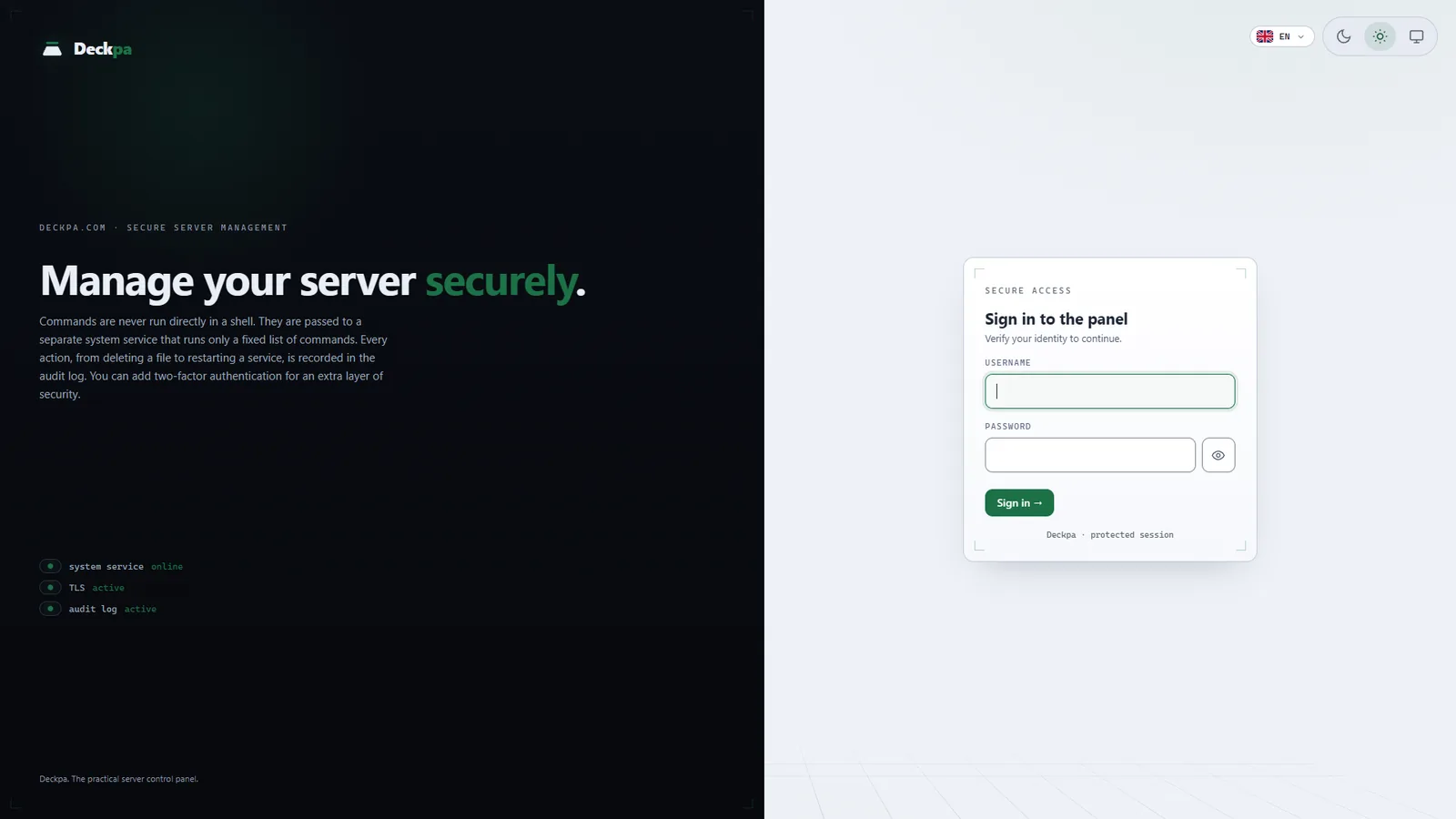
You sign in with the code from your authenticator app as well as your password. If your password leaks, nobody gets in without the code.
- Two-factor authenticationEach user turns it on in their own account. If you cannot reach your phone, you sign in with one of 10 recovery codes. An administrator cannot yet require it for every account.
- Sign-in lockoutAfter 5 failed attempts in 15 minutes, the account locks. A password must be at least 12 characters and is never stored as plain text.
- SessionA session lasts 12 hours and is tied to the IP address it started from. If your address changes, you sign in again.
Find malicious files on your sites
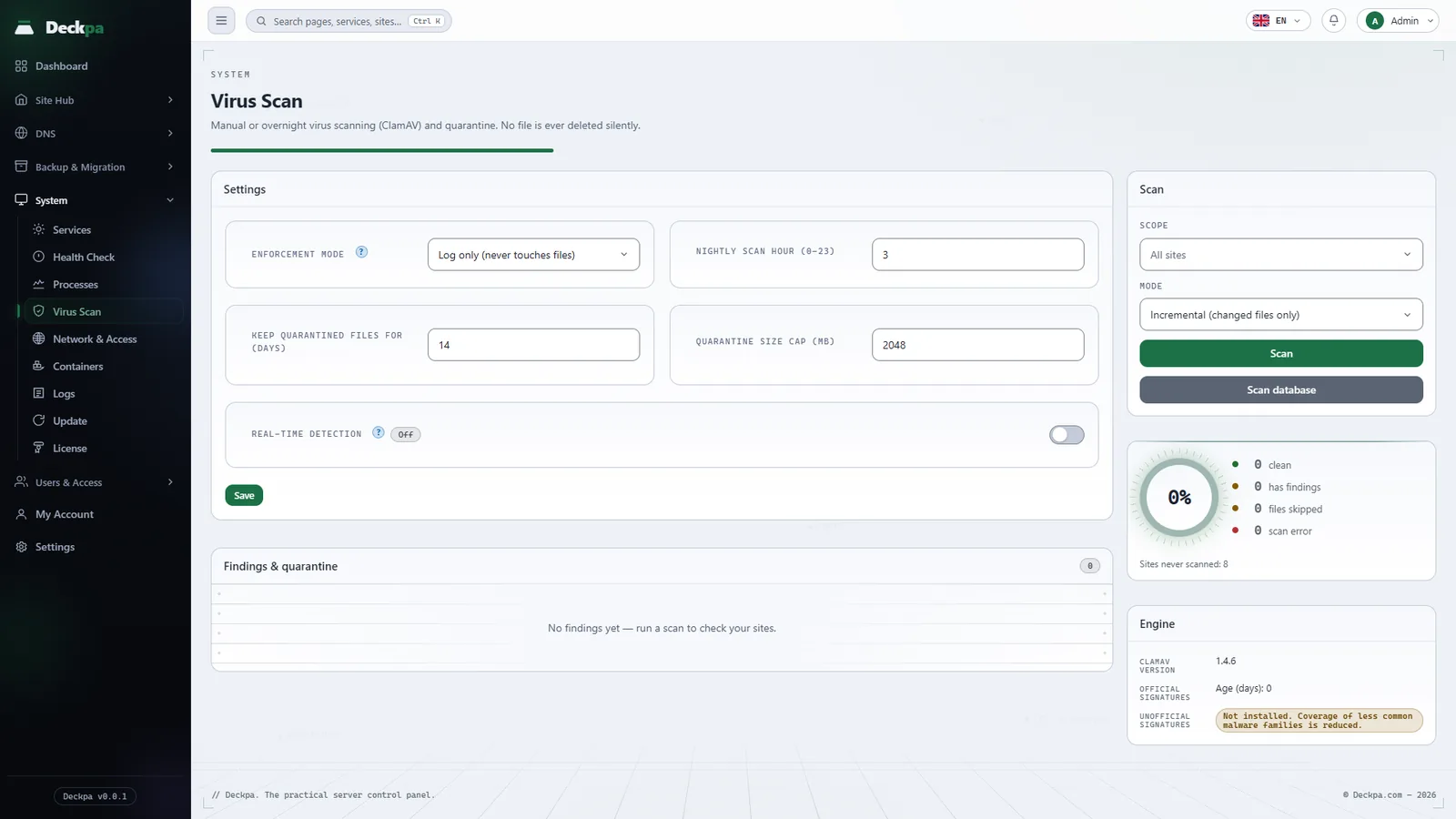
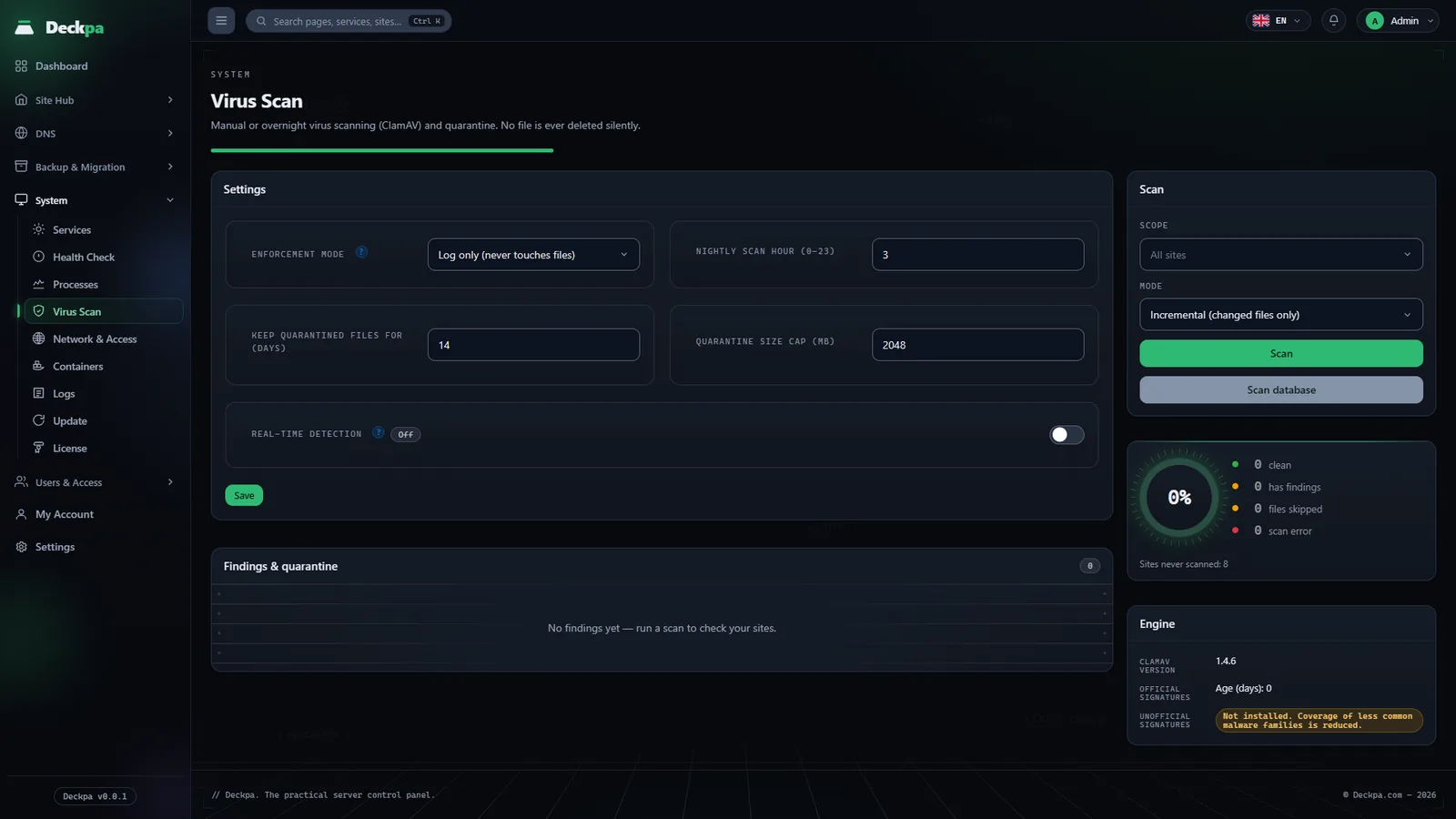
Virus Scan checks the files on your sites with ClamAV. No file is deleted silently. Every finding shows in the list, and you decide what happens to it. An administrator installs ClamAV in one click from the Services page.
- You choose what to do with findingsIn Enforce mode, malicious files are quarantined automatically. You can release a quarantined file or delete it permanently, ignore other findings, and clean injected code.
- Real-time detectionOptional: PHP files are scanned right after they are written. The ClamAV service (clamd) must be installed, and at least 1 GB of free memory is required. It reduces the risk of infection but does not completely prevent it.
- Watch firstIn the default mode (Log only) it only records and never touches files. We suggest watching the results for the first weeks; when you trust them, you switch to Enforce mode.
More measures
Protections you can turn on if you want them.
Do not publish the server IP on the panel address
The panel can open through a Cloudflare Tunnel. Once the tunnel is set up, the server's IP address is not published on the panel address. If you want, you also close the external port and reach the panel only through the tunnel address.
Limit sign-in as a customer
You turn the ability of administrators and resellers to sign in to a customer account on or off separately, and there is an "Ask for password" option. Every change made in these sessions is recorded under the name of the person who signed in.
A real certificate for the panel
If the panel name is a real domain name, a Let's Encrypt certificate is issued and renews automatically. If the panel name's DNS is on Cloudflare or on this server, validation runs over DNS and port 80 is not needed; otherwise, if the name resolves to this server, validation runs over port 80.
The panel's own protections
The values below come from the panel's code.
Sign-in protection
Your password is never stored as plain text. After 5 failed attempts in 15 minutes, the account locks.
- Password length
- at least 12
- Session length
- 12 hours
Two-step verification
Sign-in finishes with the code from your authenticator app. If you lose your phone, recovery codes are there. It is optional per user and cannot be required yet.
- Method
- authenticator app
- Backup
- recovery code
Network defense
Repeated failed SSH attempts are blocked. The panel port also limits addresses that open many connections in a short time.
- SSH
- 3 attempts, ban of at least 1 day
- Panel port
- 90 new connections a minute per IP
Site separation
Each site runs as its own Linux user. Sites are separated by Linux permissions, and each site is set up so that it cannot read another site's files. The file manager works with that user's rights.
- File path
- locked to the site directory
- Quota
- inode limit per user, if quota is enabled
Roles and permissions
There are administrator, reseller, and customer roles. Permission Groups set who can do what in each section.
- Roles
- admin, reseller, customer
- Admin only
- 16 resources
Virus Scan
It scans sites with ClamAV. In the default mode (Log only) it only records and never touches files. We suggest watching the results for the first weeks; when you trust them, you switch to Enforce mode. An administrator installs ClamAV in one click from the Services page.
- Engine
- ClamAV
- Finding
- quarantine
More safeguards on the server
Extra measures the panel applies during setup and while running.
Signed updates
The signature and checksum of a panel update are checked before it is applied. If either does not match, the update is not applied.
- Signature
- Ed25519
- Checksum
- SHA-256
Audit log
Every change the panel makes on the server is recorded with who made it and the result. The record cannot be deleted or edited from the panel interface.
- Record
- cannot be deleted or edited from the panel interface
- View
- Logs
Outgoing site traffic
Site users cannot open outgoing connections on port 25 (direct SMTP sending) or reach the cloud provider's metadata address. This makes it harder to misuse a compromised site.
- Outgoing SMTP
- port 25 blocked
- Metadata address
- blocked
Hardened PHP
Each site runs in a PHP environment that can reach only its own directories and has its own temporary and session directories. You manage the allowed PHP functions from the panel.
- open_basedir
- on
- Temp directory
- per site
TLS and security headers
Sites use TLS 1.2 and 1.3. The panel sends headers that force browsers to HTTPS, stop the page from being embedded in another page, and apply a content security policy.
- Site TLS
- 1.2 and 1.3
- Forced HTTPS in the panel
- 2 years
Health Check
Many of the 48 checks are about security: SELinux, SSH hardening, firewall ports, protection against password guessing, and PHP settings.
- Checks
- 48
- Command
- deckpa doctor